Back-to-School Video Ideas for Teachers and Students 2026
Yash Thakker
Author
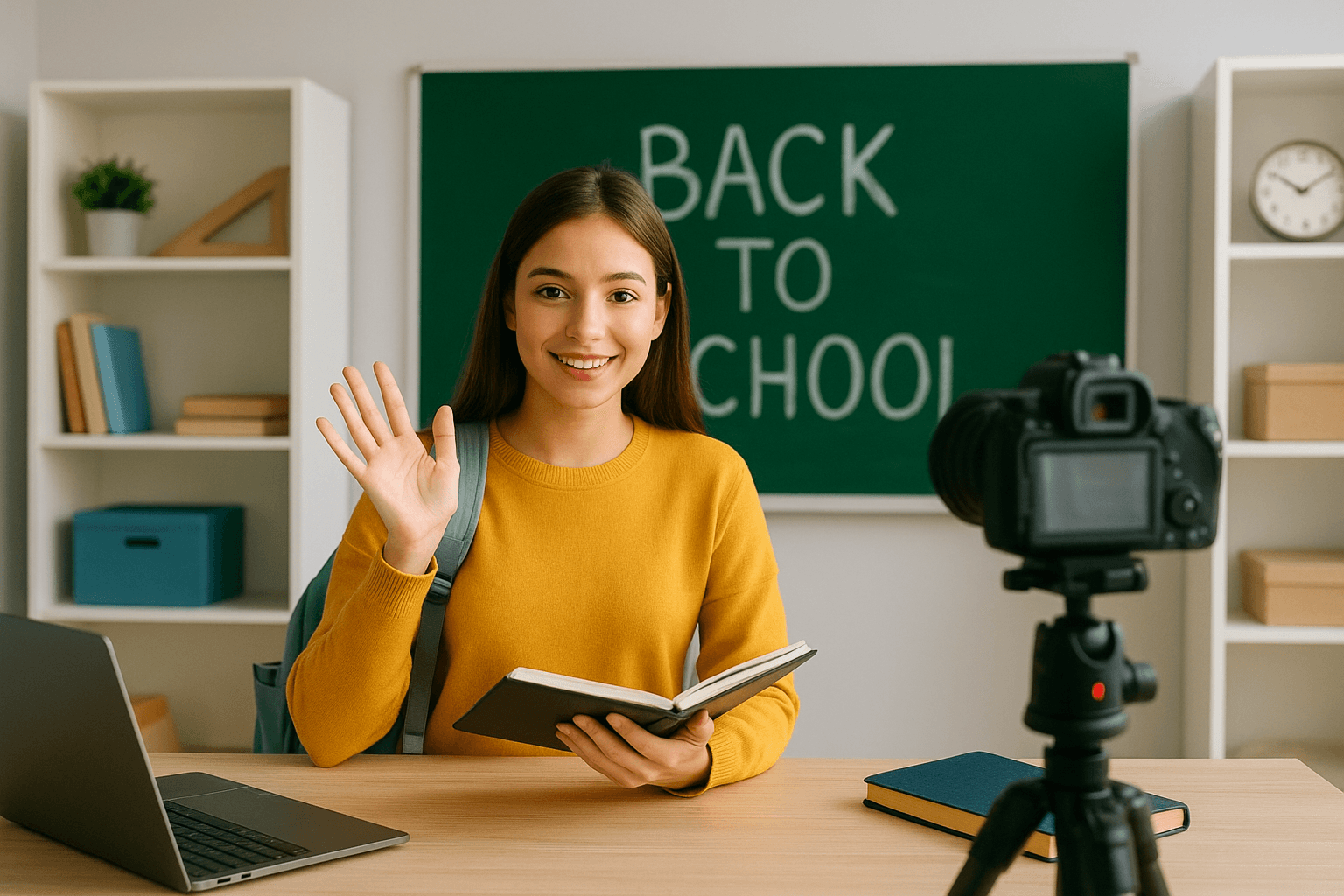
The most useful back-to-school video ideas begin with a question someone will actually have during the first week. Where do I find the assignment? What should I bring? How does this classroom routine work? What does a finished example look like? A video that answers one of those questions clearly can be more helpful than a long montage that tries to represent the whole school year.
Teachers, students, and families need different things from the same season. A teacher may want to introduce the classroom without repeating the same directions in every message. A student may want to explain a study method or document a project. A family may simply need a clear next step and a place to find current information.
This guide offers practical concepts and production choices for those needs. Each idea is intended to be manageable with ordinary recording equipment and a small editing workflow. You can retain a useful real setting, simplify a distracting background, or combine a presenter with a diagram. Start with the message and audience, then choose the visual treatment that makes the information easier to understand.
Which back-to-school video should you make first?
Make the video that answers the most common immediate question for a clearly defined audience. If you are unsure, collect the questions people repeatedly ask in emails, class conversations, or orientation sessions and choose one that benefits from being shown.
A welcome message is a sensible first project when viewers need to recognize the speaker and understand what happens next. A routine demonstration is more useful when the difficulty is procedural, such as finding materials or submitting work. A tour is helpful when physical orientation matters. These are separate jobs, and combining them can make the result harder to revisit later.
| Video idea | Primary viewer | One useful outcome |
|---|---|---|
| Teacher welcome | Students and families | Know the teacher and the next step |
| Empty-classroom tour | New students | Recognize important locations |
| Routine demonstration | Students | Follow a repeated process |
| Study-method walkthrough | Students | Try a specific learning activity |
| Family information explainer | Families | Find the current resource or contact route |
| Project introduction | Students or peers | Understand the task and a first action |
Write the outcome as a sentence before planning shots. For example, after watching, the student should know how to label and submit a practice assignment. That sentence tells you what to include and what can move to a separate resource.
Avoid assuming that a seasonal video must perform well because many people return to school. Your audience may be a single class, and success may mean fewer confused questions rather than a public view count. A modest, well-targeted recording can fully achieve that goal.
What makes a teacher welcome video feel helpful and natural?
A helpful welcome video gives viewers a clear introduction, a realistic sense of the class, and one next action. It does not need a polished performance or a tour of every policy to make that first connection.
Begin by saying your name and the class or activity you lead. Add a specific detail that helps students understand the experience, such as the kind of project they will make or how questions are welcomed. Then point them to the resource that contains current dates, supplies, and contact information. Keeping those changeable details in an accompanying page can make the video easier to maintain.
A simple recording outline
Use three short notes rather than a dense script: who I am, what we will do, and what to do first. Rehearse the transitions once, then record a conversational take. If you lose your place, pause and restart the sentence so the edit has a clean point to join.
Choose a setting that supports the introduction. A real classroom can give useful context if the frame is tidy and contains nothing that should be shared. A plain backdrop can work just as well when the room is unavailable. Our guide to choosing a video backdrop explains how to decide whether the setting adds information or only visual noise.
Leave space for captions and avoid placing important objects behind text. Record a short test and listen to it before completing the whole message. Clear speech and an understandable next step matter more than decorative transitions or a complicated opening sequence.
How can you show classroom routines without filming a whole class?
Demonstrate the routine with an empty room, a staged example, or a close view of the relevant materials. Many procedures are easier to understand when the viewer can concentrate on the action without other activity in the frame.
For a materials routine, show where an item is stored, how it is selected, and where it goes afterward. For an assignment process, use a sample document and a demonstration account or prepared screen that contains no real student information. For a group-work routine, arrange the materials and explain the sequence without needing a live class to perform it.
Plan each shot around a decision the student must make. A wide shot can establish the location, while a closer view shows a label or action. Hold the close view long enough for the relevant detail to be seen. A fast montage may look lively but leave the viewer unable to reproduce the process.
Add a common mistake only when you can explain the correction clearly. For example, show a practice file saved under an unclear name, then replace it with the expected naming pattern. Keep the example generic and avoid turning a real student's error into the teaching material.
End by showing the completed state. If the task is organizing a desk, show what ready looks like. If it is submitting a file, show the confirmation the viewer should expect in that particular system. Check the demonstration whenever the classroom setup or software changes; a beautifully edited outdated instruction is still an unhelpful instruction.
What study videos are useful for students to create?
A useful study video demonstrates a specific process with a worked example, rather than promising that one routine will suit every learner. Choose a task you can explain accurately and show enough of the thinking for someone else to try it.
One idea is a note-to-summary walkthrough. Start with a short set of sample notes, identify the main point, and show how you turn it into a concise explanation. Another is an error-review video: use a practice problem, explain where the reasoning went wrong, and demonstrate a corrected approach. A project-planning video can show how you break a larger assignment into concrete next actions.
Keep the example small. A video about preparing one useful revision question is easier to assess than a broad promise to transform study habits. Say what the method is intended to help with, and distinguish your personal experience from a general claim about learning. Avoid assigning viewers a fixed learning style or presenting a preference as a diagnosis.
A study-with-me recording serves a different purpose. It may provide a shared work session or a calm routine, but it should not be described as proof that viewers will learn more. Explain the planned activity, leave the workspace readable, and consider whether background music would distract from the task or create an unnecessary rights issue.
If you appear beside notes or a diagram, a video background-removal workflow can help create a presenter overlay. Check that the cutout does not obscure the exact text, formula, or example you are explaining.
When should you keep the background, and when should you replace it?
Keep the background when it teaches something about the task or location; replace it when the setting distracts from the speaker and adds no useful context. Background removal is an editing choice, not a requirement for an educational video.
For a classroom tour, the room is the subject, so removing it defeats the purpose. For a demonstration of organizing supplies, the table and storage area may be essential. For a teacher explaining a concept beside a diagram, a simplified setting can give the diagram more room and reduce visual competition.
If you plan to replace the scene, record with clear separation between the speaker and the original background. Avoid a busy pattern that blends with clothing and give hands enough room to move within the frame. Make a test that includes the actual gestures you will use, not only a still pose facing the camera.
BGRemover.video's current video interface offers a transparent Pro Bundle for editing and MP4 with a custom background. Check the available choice and displayed credit requirement for your job. A transparent master needs a compatible editor for the next composition; a finished replacement background is more straightforward when the goal is a normal video upload.
Review hair, hands, and any teaching object after removal. A missing ruler edge or a partly erased worksheet can undermine the lesson even when the face looks clean. If the replacement is white, our white-background video guide covers lighting and edge problems that often appear against a simple canvas.
How do you make the video accessible and easy to understand?
Plan clear speech, accurate captions, and a useful written alternative before recording, then check that essential visual information is also explained. A clean background helps focus attention, but it cannot replace those communication choices.
The W3C guidance on accessible media recommends considering accessibility during planning, scripting, and production. That approach is practical for school videos: it is easier to say what a diagram shows during the recording than to discover later that the instruction depends entirely on an unexplained gesture.
Use concrete language. Instead of saying put it over there, name the location or item. If you demonstrate a screen action, describe the control and result. Pause between steps so viewers have a chance to follow the sequence, and provide the main instructions in a written resource they can revisit without replaying the whole clip.
Check automatic captions for names, subject-specific vocabulary, and numbers. A wrong word in an ordinary sentence may be mildly confusing; a wrong symbol or deadline in a lesson can change the instruction. Make sure captions do not cover the worked example or the hands performing a demonstration.
The Section508.gov caption and transcript guidance also distinguishes captions synchronized with media from a separate transcript. Choose the forms that fit the material and the audience. For families using another language, arrange a meaningful translation of essential information instead of assuming an unreviewed automatic subtitle track communicates every detail correctly.
What should you review before sharing a school-related video?
Review the full picture, sound, text, and sharing destination against the permissions and expectations for the project. Background replacement alone does not remove every identifying detail or make a recording appropriate for public distribution.
Look beyond the main speaker. Names can appear on worksheets, badges, screens, or wall displays. A reflection may reveal someone outside the main frame, and spoken audio can identify a person even when they are not visible. Use staged examples and empty-room footage where they answer the question just as well.
Confirm who the video is for and where it will be shared. A resource intended for a class learning system may need different preparation from a public promotional post. Follow the school's process for participation and publication, and make the intended audience clear to anyone involved in recording. This guide does not establish a universal rule for every institution or jurisdiction.
Ask another person to watch the export with a specific checklist. Can they follow the instruction? Is any information visible that should not be shared? Are captions correct? Does the link open for the intended viewer? A second review can catch practical mistakes that become invisible after many editing passes.
Also check the final upload, because a platform can resize the frame, display a different thumbnail, or handle captions differently from your editor. Keep a record of where the video is published so it can be updated or removed when the procedure, classroom, or intended audience changes.
How can you build a manageable series for the school year?
Build a small library around recurring needs, using a consistent recording setup and a clear update plan. A sustainable series answers real questions as they arise instead of requiring a new elaborate production every week.
Begin with a welcome, one important routine, and one worked example. Watch how people use them and collect the questions that remain. If viewers repeatedly ask about a step already shown, investigate whether the demonstration is unclear, the resource is hard to find, or the instruction has changed. More videos are not always the solution.
Reuse the visual system: similar framing, readable text, a familiar opening sentence, and predictable placement of the next action. Keep changing dates and contact details in a maintained written page when possible. This reduces the chance that an otherwise useful recording becomes obsolete because of one small administrative change.
Create a simple asset folder with original footage, approved exports, captions, and the script or outline. Name files by topic and revision so another teacher or student collaborator can understand them. If you use background removal, keep the source footage as well as the finished composition so future edits do not depend on recovering detail from a compressed upload.
Measure usefulness with the intended task. Can students complete the demonstrated routine? Do families find the correct resource? Which explanation needs a clearer example? Views and reactions may provide context, but they do not by themselves show that the video solved the educational problem it was made for.
Start with one question worth answering
Back-to-school video ideas become useful when they connect a specific audience with a clear next step. A welcome introduces the person and the class. A routine demonstration shows how something works. A study walkthrough makes a piece of thinking visible. Each format earns its place by helping someone do or understand something concrete.
Choose one of those needs and keep the first production manageable. Record a short test, listen to the audio, check the important visual details, and plan captions and written instructions. Keep the real setting when it explains the task, and simplify it when it only distracts. Review permissions and the final upload before sharing the result with its intended audience.
If a speaker's setting needs cleanup, try a representative clip in BGRemover.video and inspect the available export choices. Build the final composition around the lesson, not around an effect. One clear, maintained resource is a strong starting point for a school-year video library that people can actually use.
Frequently asked questions
What should a back-to-school welcome video include?
Include who you are, what the viewer needs for the first step, and where to find the next piece of information. Keep detailed policies and changing dates in an accompanying written resource.
Do I need to film students for a school video?
No. A teacher introduction, empty-classroom tour, hands-only demonstration, or illustrated explainer can answer many first-week questions without showing students.
Can background removal make a school video private?
No. It may replace a visible setting, but identities, voices, names, screens, and reflections can still reveal information. Review the entire recording and follow the intended sharing permissions.
How long should a back-to-school video be?
Use the time needed to answer one clear question without unnecessary repetition. Separate a welcome, a routine demonstration, and a detailed tutorial when viewers need them at different moments.
How do I make an educational video easier to follow?
State the purpose early, show each action clearly, use accurate captions, and provide the important instructions in an accessible written form. Test the result with someone unfamiliar with the process.