How to Create a GIF of Yourself: Clear Steps for 2026
Yash Thakker
Author
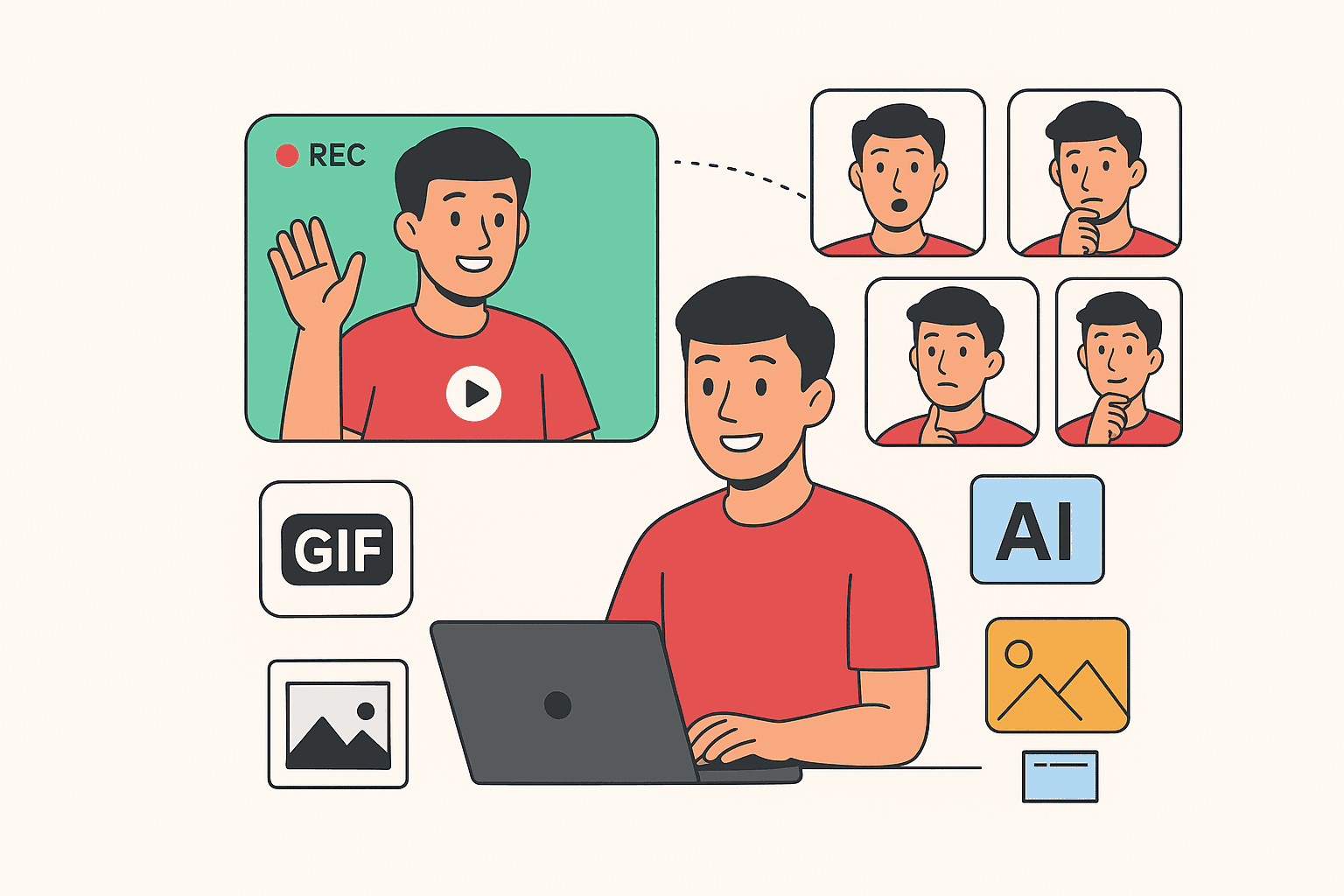
To create a GIF of yourself, start with one expression that works without sound: a wave, a nod, a surprised look, or a small celebration. Record it clearly, trim away the hesitation, and build a loop that still makes sense when it repeats. The editing is much easier when the performance is simple and the framing gives your face and hands room to move.
A transparent sticker adds another step. You need to remove the background and preserve the cutout through conversion. That is where many otherwise good attempts develop a white rectangle, rough hair, or missing fingers. The problem may come from the selection, the intermediate file, or the final GIF settings, so it helps to review those stages separately.
This guide follows the whole process from recording to sharing. It explains when to keep the original background, when to use a background remover, and how to judge the final file in the place where people will actually see it. You do not need an elaborate animation project to make a useful personal reaction.
Should you make a normal GIF or a transparent sticker?
Make a normal GIF when the whole rectangular scene contributes to the reaction; choose a transparent sticker when the person should sit over another image or conversation background. The choice affects framing, edge quality, and delivery requirements.
A rectangular GIF can include context. You might point at a completed task, react to an object on the desk, or raise a mug in celebration. Removing everything except your body could make those actions less understandable. In that case, keep the scene and concentrate on timing and a clean crop.
A cutout sticker works best when the action remains clear by itself. A wave or nod is easy to recognize without the room behind you. Give hands and hair enough space in the recording so the background-removal step does not have to deal with limbs cut off by the original frame.
Decide where you will use the result before recording a large set. A team chat, a website, and a public sticker library may accept different formats and impose different upload conditions. A file that animates on your computer is not automatically supported in every destination. For a finished social video instead, our Instagram and TikTok background guide covers composition and publishing previews.
If you want reusable still cutouts as well, the image background-removal workflow can help prepare separate assets. For an animated subject, begin with video and keep the moving source available. A single still image and a real recorded expression are different starting points, even when both eventually become a small animated sticker.
How should you record yourself for a clean result?
Record a short, deliberate action with stable framing, clear light, and enough contrast between you and the background. Better source footage gives the cutout and the final small animation a stronger starting point.
Place the camera where the face is easy to read and avoid strong backlighting that turns the expression into a silhouette. Use a background that does not closely match your hair or clothing. Keep the camera still when possible; a moving camera adds motion that may distract from a simple reaction.
Record the action with room at both ends
Pause briefly before the expression, perform it, and pause again. Those quiet moments give you options when trimming. For a wave, begin and end with the hand in a similar position if you want an easy repeating loop. For a surprised look, decide whether the return to a neutral face is part of the joke or should be removed.
Watch for motion blur in hands and hair. You do not need to perform unnaturally slowly, but an extremely fast gesture can become an indistinct smear when reduced to a small GIF. Record several takes and choose the clearest one rather than trying to rescue a confusing action later.
Keep the original recording at its captured quality until the editing decisions are made. Repeatedly sending it through messaging apps or resaving compressed copies can damage fine edges before background removal even starts. A clean original also lets you create a different crop or timing later without repeating the recording session.
How do you choose the right part of the recording?
Choose the shortest segment that contains a complete, readable expression. Remove the moments where you prepare, adjust the camera, or wait after the action unless those pauses improve the reaction.
Watch the take without sound. If the meaning depends on a spoken sentence, decide whether a brief caption can carry it. If not, use a video instead of forcing the idea into a silent animation. A standard animated GIF does not carry an audio track, so the visual performance must do the work.
Trim the beginning until the expression starts promptly, but leave enough context to understand the movement. Then trim the ending so repetition feels intentional. A sudden jump back to the first frame can be funny in some reactions and distracting in others; judge it in motion rather than from the timeline alone.
Crop unused space carefully. Large empty borders make the person appear small in a chat bubble or sticker picker. At the same time, an overly tight crop may cut off a hand midway through the loop. Scrub through the full segment before deciding the crop is safe.
If you are new to trimming and timeline work, our beginner editing-software guide helps you choose a tool for that stage. A background remover handles the separation task; a timeline or GIF editor handles timing and repetition. Keeping those responsibilities clear makes the workflow easier to troubleshoot.
When should you remove the background?
Remove the background after selecting the useful take and before converting the finished animation into GIF. That order avoids processing footage you will discard and lets you inspect the cutout before palette conversion changes its appearance.
Use the selected clip in the video background-removal workflow. Choose an output path suitable for the next editor, and check current processing and export conditions in the application. Do not assume that every transparent mode or preview is interchangeable.
Inspect the full gesture. A face may remain clean while fingers merge into the background during a wave. Look at the space between the arm and torso, the outline of the shoulders, and any loose hair. Those areas can become more noticeable when the sticker is placed over a contrasting chat background.
If the result is unreliable, compare another take before spending a long time repairing the first one. A slightly different arm position or better separation from the wall can be more useful than repeatedly converting the same damaged edge. For a simple reaction, rerecording may be the shortest path to a clean result.
Keep the original and the processed intermediate separately. This lets you revisit the cutout without losing the performance. Our transparent-background guide explains why a transparent asset is different from one with a white background. That distinction becomes especially important when the final sticker must blend into both light and dark interfaces.
Why do GIF edges look rougher than the original video?
GIF has limited color and transparency representation, so conversion can simplify gradients and make soft cutout edges look harsher. A clean video intermediate can therefore produce a disappointing GIF even when the background-removal stage worked well.
The MDN image-format guide explains GIF's indexed palette and its fully transparent-or-opaque pixel behavior. Formats with full alpha support can represent intermediate opacity more naturally. This difference matters around hair, motion blur, and soft shadows.
Do not try to fix every rough edge by blurring the entire subject. That can reduce facial detail without solving the final transparency threshold. Compare the cutout before conversion with the GIF after conversion to locate where the defect first appears.
If the sticker will always sit on one known background, a carefully chosen solid backdrop may produce a cleaner-looking rectangular GIF. If it must remain transparent, simplify the composition and prioritize a readable silhouette. A large, elaborate hairstyle or translucent fabric may not survive small-scale GIF conversion as gracefully as a simple portrait.
Also inspect color shifts. Skin tones and smooth backgrounds can develop visible bands or dithered texture when the palette is reduced. The goal is not to preserve every source pixel at any file size; it is to keep the expression clear in the actual destination. When soft transparency or high color fidelity is essential, consider whether that destination accepts a different animation or video format instead.
How do you make the animation loop naturally?
Match the beginning and ending poses when possible, then watch several repetitions to judge the transition. A loop needs to feel deliberate over time, not merely contain a good individual gesture.
For a wave, choose a segment where the hand returns near its starting position. For a nod, include the return to the initial posture. A short pause can help separate repeated actions, but too much pause makes the GIF feel unresponsive. Adjust it while watching the animation at its intended display size.
A reverse or back-and-forth loop can work for some movements, but it changes the meaning of others. Reversing a sip makes liquid seem to return to the cup; reversing speech can look distracting even without sound. Use the effect because the movement suits it, not because it hides every difficult transition.
Avoid adding more animation just to fill time. One clear reaction is easier to use in conversation than a sequence of several unrelated expressions. If you recorded a wave, a shrug, and a smile, consider making separate files rather than forcing all three into one loop.
Ask someone unfamiliar with the recording what the GIF communicates. If they cannot tell whether you are agreeing, celebrating, or joking, a clearer take may help more than another effect. A personal GIF succeeds when the viewer understands the reaction quickly. Smooth timing supports that goal, but it cannot substitute for an expression that reads well in a small frame.
How can you reduce file size without ruining the reaction?
Reduce unnecessary duration and empty space first, then adjust dimensions, frame count, and palette while checking the result. These choices affect different aspects of the animation, so change them deliberately rather than lowering every setting at once.
| Adjustment | What it can improve | What to inspect afterward |
|---|---|---|
| Shorter duration | Removes repeated or unused moments | Expression still feels complete |
| Tighter crop | Uses the frame more efficiently | Hands and hair remain inside the canvas |
| Smaller dimensions | Reduces the amount of image data | Face and captions stay readable |
| Fewer frames | Reduces animation data | Motion does not become confusing or jerky |
| Simpler palette | Reduces color complexity | Skin and edges do not deteriorate excessively |
GIPHY's GIF creation best practices recommend short, compact uploads and explain that the platform may optimize content for its display contexts. Those are destination-specific guidelines; check the current requirements for the place you will upload rather than treating one service's limits as a universal GIF standard.
Keep a high-quality working copy and create smaller delivery versions from it. If you repeatedly optimize an already degraded file, it becomes harder to recover clean edges or color. Name variants clearly so you know which one was intended for a chat, a webpage, or a public library.
Measure success by the final display. A much smaller file is useful only if the expression remains understandable. The appropriate compromise for a tiny reaction sticker can be different from a larger animation explaining a product step.
What should you check before sharing or uploading?
Test the exact final file in the intended destination and confirm that it animates, loops, and displays its background as expected. Local playback alone does not establish the behavior after upload or conversion by another service.
For a transparent sticker, place it over both a light and a dark background. Look for a hidden rectangle, a white fringe, or missing pieces between limbs. Check the first frame too, since some interfaces show a still preview before playing the animation.
If you use GIPHY, its sticker best practices distinguish stickers from ordinary GIFs and specify transparency and animation requirements. Uploading a file does not itself guarantee approval or availability in every connected sticker search. Keep that expectation separate from the technical export.
Review any text for spelling and readability. Short phrases should support the expression rather than explain a complicated story. If you plan to post the GIF on a webpage, consider whether repeated motion distracts from surrounding content. W3C's guidance on stopping moving content describes a control-based approach; a static alternative may also be useful in the page design.
Finally, make sure the image is something you are comfortable having reused. A personal reaction can travel beyond its first conversation. Use your own recording or material you are authorized to share, and avoid including other people's private surroundings unintentionally. Removing a background can simplify the scene, but it does not make every visible or identifying detail disappear.
How do you build a useful set of personal GIFs?
Build a small set of distinct reactions with consistent framing and clear meanings, then expand only after seeing which ones you actually use. A handful of readable expressions is more useful than a large folder of near-duplicates.
Start with a greeting, agreement, thanks, celebration, and a gentle puzzled reaction. Record them in one session so lighting and camera position remain consistent. Keep a simple naming system and preserve the original clips alongside the reviewed final exports.
The repeatable workflow is straightforward: choose the action, record it clearly, trim it, remove the background if the design needs it, convert carefully, and test the destination. If one stage introduces a problem, return to that stage instead of applying random fixes to the final GIF.
For a cutout-style reaction, try a short selected take in BGRemover.video and inspect the processed sequence before GIF conversion. The best result comes from treating the expression, the loop, and the file format as related decisions. When each one is clear, the finished animation feels like you and remains useful wherever you choose to share it.
Frequently asked questions
How do I make a GIF of myself?
Record one short expression, trim it to a clear loop, and convert the selected clip in a GIF-capable editor. Remove the background before conversion if you want a cutout-style sticker, then test the final file in its destination.
Does a GIF include sound?
A standard animated GIF does not carry an audio track. Make the expression understandable visually or use a video format when speech or music is essential.
Can a GIF have a transparent background?
Yes, but GIF transparency is limited to fully transparent or opaque palette entries. It does not preserve the same soft alpha transitions available in some other image formats, so fine edges need review.
Why does my transparent GIF have a white border?
The border may come from retained background color, a flattened intermediate, or conversion of soft edges into GIF's limited transparency. Compare the pre-conversion cutout and final GIF over both light and dark backgrounds.
How do I make a GIF smaller?
Shorten unnecessary motion, crop unused space, reduce dimensions, and adjust the frame count or palette deliberately. Review the result after each change so expressions and important details remain readable.
Will uploading a GIF make it appear in every sticker search?
No. Uploading, approval, distribution, and search visibility are separate steps governed by the destination platform. Check its current requirements rather than assuming a published file is available everywhere.