Remove White Backgrounds from GIFs: Easy Guide
Yash Thakker
Author
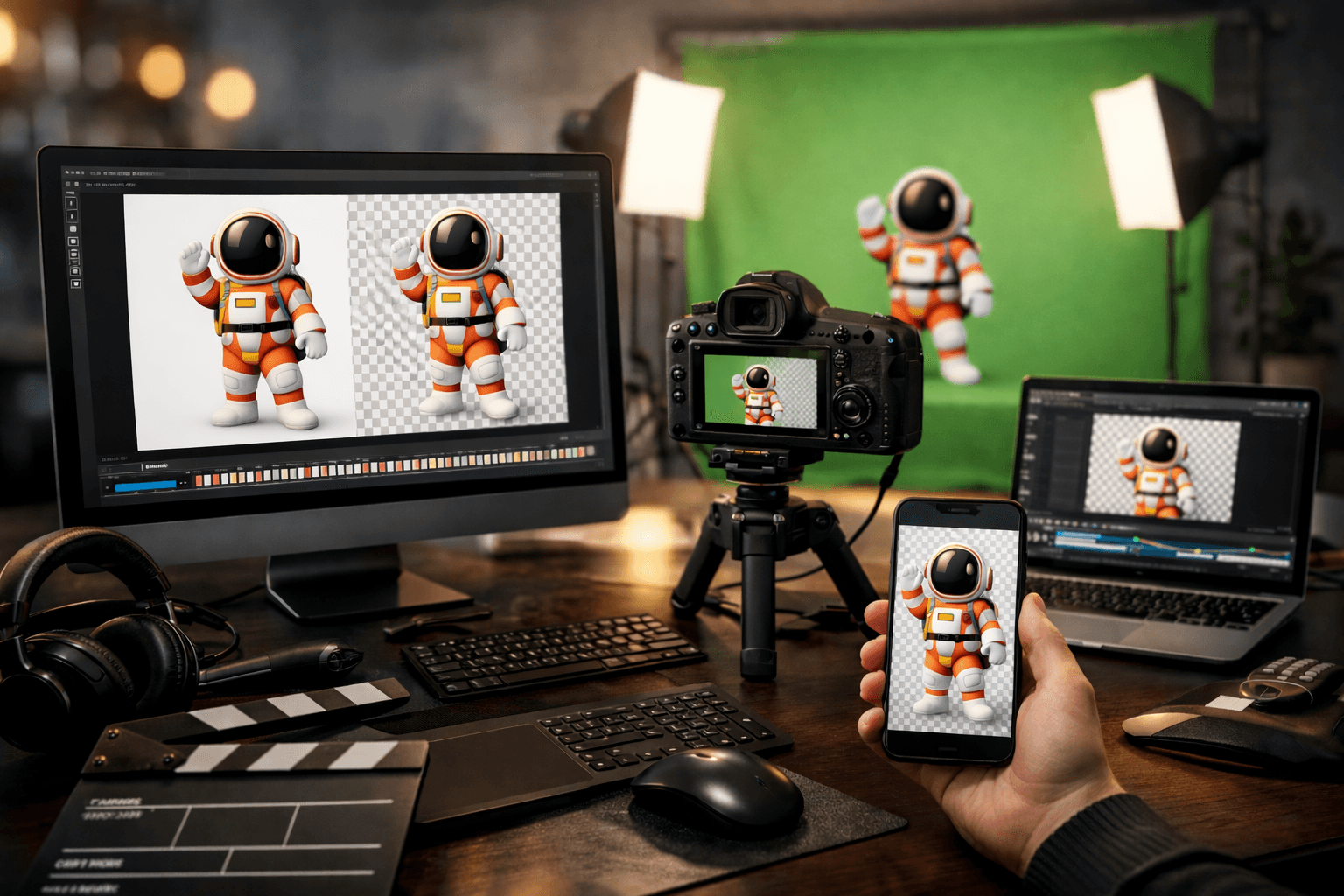
Have you ever created or downloaded a perfect GIF animation only to find it has an annoying white background? Whether you're designing for social media, creating content for your website, or working on a presentation, a white background can ruin the professional look of your animated GIF.
The good news? Removing backgrounds from GIFs is easier than you think, even if you're a complete beginner. With AI-powered tools like BGRemover.video, you can transform your GIFs into transparent background masterpieces in just seconds. In this comprehensive guide, we'll walk you through everything you need to know about creating professional transparent GIFs.
What is a Transparent Background GIF?
A transparent background GIF is an animated image where the background is see-through, allowing the content behind it to show through. Instead of a solid white, black, or colored background, transparent GIFs blend seamlessly into any webpage, presentation, or design project.
This is particularly useful for:
- Social media posts and stories
- Website animations and graphics
- Marketing materials and advertisements
- Presentation slides
- Email signatures
- Digital stickers and memes
Why Remove the White Background from Your GIF?
Before diving into the how-to, let's understand why transparent backgrounds matter:
- Professional Appearance: Transparent GIFs look polished and integrate smoothly into any design
- Versatility: Use the same GIF across different colored backgrounds without worrying about clashing
- Modern Aesthetic: Clean, floating animations look more contemporary and eye-catching
- Better User Experience: Seamless integration creates a more cohesive visual experience
- Increased Engagement: Professional-looking content typically performs better on social media
Methods to Remove White Background from GIF
When it comes to removing white backgrounds from GIFs, BGRemover.video offers the most efficient and professional solution. However, let's explore all available methods so you can choose what works best for your needs.
Method 1: Online GIF Background Remover Tools (Easiest for Beginners)
Best for: Quick edits, no software installation needed
Online tools make it incredibly easy to remove background from gif without any technical expertise. Here's how:
- Find a Reliable Tool: Visit BGRemover.video for professional AI-powered background removal
- Upload Your GIF: Drag and drop your animated GIF
- Automatic Processing: AI-powered tools automatically detect and remove the background
- Download: Save your transparent GIF
Method 2: Desktop Software (More Control)
Best for: Professional projects, frequent use, complex GIFs
Desktop applications like Photoshop, GIMP, or specialized GIF editors offer more control:
- Import your GIF as layers
- Use selection tools to isolate the subject
- Delete or mask the white background
- Export with transparency enabled
Method 3: Video Background Remover (For MP4 "GIFs")
Best for: High-quality animations, social media content
Many modern "GIFs" are actually short video clips. For these, you need a [video background remover](https://www.bgremover.video/) like BGRemover.video:
- Upload your video file
- Let AI remove the background automatically
- Export as transparent WebM or convert to GIF
Step-by-Step: Remove Background from GIF Using BGRemover.video
Let's walk through the process using BGRemover.video - the easiest method for beginners:
Step 1: Prepare Your GIF
- Ensure your GIF has good contrast between subject and background
- Check that your subject doesn't blend into the white background
- Verify the file size is within the tool's limits (usually 50-100MB)
Step 2: Visit BGRemover.video
- Go to BGRemover.video
- The platform offers AI-powered background removal for GIFs and videos
- No complicated setup required
Step 3: Upload Your File
- Click the upload button or drag and drop
- Wait for the upload to complete
- BGRemover.video shows a preview immediately
Step 4: Process the Background Removal
- Click "Remove Background" or "Process"
- Wait for AI to analyze each frame (this may take 30 seconds to several minutes)
- Review the preview to ensure quality
Step 5: Fine-Tune (If Available)
- Some tools let you adjust edge smoothness
- You may be able to clean up any remaining background fragments
- Check for any errors in complex areas like hair or transparent objects
Step 6: Download Your Transparent GIF
- Choose your export format (GIF, PNG sequence, or video)
- Select quality settings if available
- Download and test on different backgrounds
Tips for Best Results
Using BGRemover.video ensures optimal results, but following these tips will help you get even better outcomes:
Before Processing:
- Clean Up Your Original: Remove unnecessary elements that might confuse the AI
- Check Lighting: Ensure consistent lighting across frames for better edge detection
- Simplify Backgrounds: If possible, use solid colors (not just white) for easier removal
- Optimize File Size: Compress your GIF if it's too large for free tools
During Processing:
- Use High-Quality Settings: Don't sacrifice quality for speed
- Check Preview Carefully: Look for artifacts or missed areas
- Process in Segments: For very long GIFs, consider breaking them into parts
Choosing the Right Background Removal Tool
When selecting a video background remover or [gif remover] (https://www.bgremover.video/) tool, consider:
For Beginners:
- User-friendly interface: Look for drag-and-drop functionality
- Automatic processing: AI should do the heavy lifting
- Tutorial availability: Good documentation or video guides
- Free tier: Test before committing to paid plans
For Professionals:
- Batch processing: Handle multiple files simultaneously
- API access: Integrate into workflows
- High-resolution support: No quality compromises
- Advanced editing: Manual refinement options
For Budget-Conscious Users:
- Free trials: Test premium features before buying
- One-time purchase: Avoid ongoing subscriptions if possible
- Open-source options: Tools like GIMP offer free alternatives
- Credit-based systems: Pay only for what you use
Why Choose BGRemover.video for GIF Background Removal
BGRemover.video stands out as the premier solution for removing backgrounds from GIFs and videos. Here's why thousands of content creators, marketers, and businesses choose BGRemover.video:
Advanced AI Technology
- State-of-the-art machine learning algorithms automatically detect subjects with incredible precision
- Precise edge detection handles complex elements like hair, fur, and transparent objects flawlessly
- Frame-by-frame consistency ensures smooth animations without quality loss
- Intelligent subject recognition works even with moving objects and dynamic scenes
Professional Quality Results
- Maintains original resolution and frame rate for pixel-perfect output
- No artifacts or pixelation - clean, professional results every time
- Clean, natural-looking edges that blend seamlessly into any background
- Professional-grade output suitable for commercial use and high-stakes projects
User-Friendly Experience
- Simple drag-and-drop interface - no tutorials needed
- No technical skills required - anyone can create professional results
- Real-time preview before download so you can verify quality
- Fast processing times save you hours of manual editing work
Versatile Format Support
- Works with GIF, MP4, MOV, WebM, AVI, and more video formats
- Export options for different use cases - GIF, transparent video, PNG sequences
- Batch processing for multiple files - perfect for large projects
- High-resolution output support up to 4K quality
Time and Cost Savings
- Process GIFs in seconds instead of spending hours with manual editing
- No expensive software subscriptions needed
- Eliminates the need to hire professional editors
- Batch processing capabilities save time on multiple projects
Reliable Performance
- Cloud-based processing means no strain on your computer
- Consistent results regardless of your device's capabilities
- Regular updates with the latest AI improvements
- Enterprise-grade security and privacy protection
Best Practices for Using Transparent GIFs
Once you've successfully removed the white background from your GIF, follow these best practices:
- Optimize for Web: Compress your GIF to reduce load times
- Test Across Platforms: Verify transparency works on different websites and apps
- Consider Fallbacks: Have a solid background version for platforms that don't support transparency
- Mind the File Size: Keep GIFs under 1-2MB for web use
- Add Alt Text: Describe your GIF for accessibility
- Check Mobile Rendering: Ensure your GIF looks good on small screens
- Version Control: Keep both transparent and non-transparent versions
Beyond White: Removing Any Background Color
The same techniques work for removing any solid color background, not just white:
- Green screen backgrounds: Common in video production
- Blue backgrounds: Often used in photography
- Black backgrounds: Popular in gaming and tech content
- Colored backgrounds: Any solid or gradient background
BGRemover.video can handle any color automatically. For manual removal, the process remains the same - select and delete the unwanted background color.
Get Started with BGRemover.video Today
Ready to transform your GIFs? BGRemover.video is the ultimate solution for removing white backgrounds from your animated GIFs. Here's what makes it the best choice:
- Lightning-fast processing: Remove backgrounds in seconds, not hours
- Professional quality: AI-powered technology ensures clean, precise results
- No technical skills needed: Simple drag-and-drop interface anyone can use
- Multiple format support: Works with GIF, MP4, MOV, WebM, and more
- Batch processing: Handle multiple files at once to save time
Visit BGRemover.video now and experience the easiest way to create stunning transparent GIFs. Whether you're a content creator, marketer, designer, or business owner, BGRemover.video has the tools you need to create professional-quality transparent animations.
Conclusion
Removing white backgrounds from GIFs doesn't have to be complicated or require professional design skills. BGRemover.video makes it incredibly simple to create professional transparent animations in seconds.
Why BGRemover.video is Your Best Choice:
- Save Time: Transform GIFs in seconds instead of spending hours with manual editing
- Professional Results: AI-powered precision delivers clean, artifact-free transparent backgrounds
- Easy to Use: No design skills or technical knowledge required
- Affordable: Get professional-quality results without expensive software subscriptions
- Versatile: Handle GIFs, videos, and multiple formats all in one place
Frequently Asked Questions (FAQ)
Q1: Can I remove the background from any GIF?
A: Yes, you can remove backgrounds from most GIFs, but results depend on the complexity of the animation and how well the subject contrasts with the background. Simple animations with clear subjects work best. BGRemover.video uses advanced AI technology to handle even complex GIFs with subjects that have intricate edges like hair or fur, making it ideal for both simple and challenging projects.
Q2: Is it free to remove background from GIF?
A: BGRemover.video offers flexible pricing options to suit different needs. While many basic tools exist with limitations like watermarks and file size restrictions, BGRemover.video provides professional-quality results with features like batch processing, high-resolution outputs, and no watermarks. You can try BGRemover.video to experience the difference that professional AI-powered background removal makes.
Q3: Will removing the background reduce GIF quality?
A: Not necessarily. Quality depends on the tool you use and your export settings. High-quality video background remover tools like BGRemover.video preserve the original resolution and frame rate. However, some free tools may compress your GIF or reduce frames to speed up processing. Always choose the highest quality export settings available and start with the best possible source file.
Q4: Can I remove backgrounds from GIFs on my phone?
A: Yes! Many mobile apps and web-based tools work on smartphones and tablets. Browser-based transparent background maker tools are particularly convenient as they work on any device with internet access. Some dedicated mobile apps also offer background removal for GIFs and videos, though they may have more limitations than desktop alternatives.
Q5: How long does it take to remove a background from a GIF?
A: With BGRemover.video, processing time is incredibly fast thanks to advanced AI technology. Simple, short GIFs (2-3 seconds) can be processed in just 10-30 seconds, while longer or more complex animations typically take 1-3 minutes. This is significantly faster than manual editing which can take 30+ minutes or more. BGRemover.video's AI acceleration ensures you get professional results in a fraction of the time compared to traditional methods.