Remove Background from GIF: Transparent Animation Guide 2026
Yash Thakker
Author
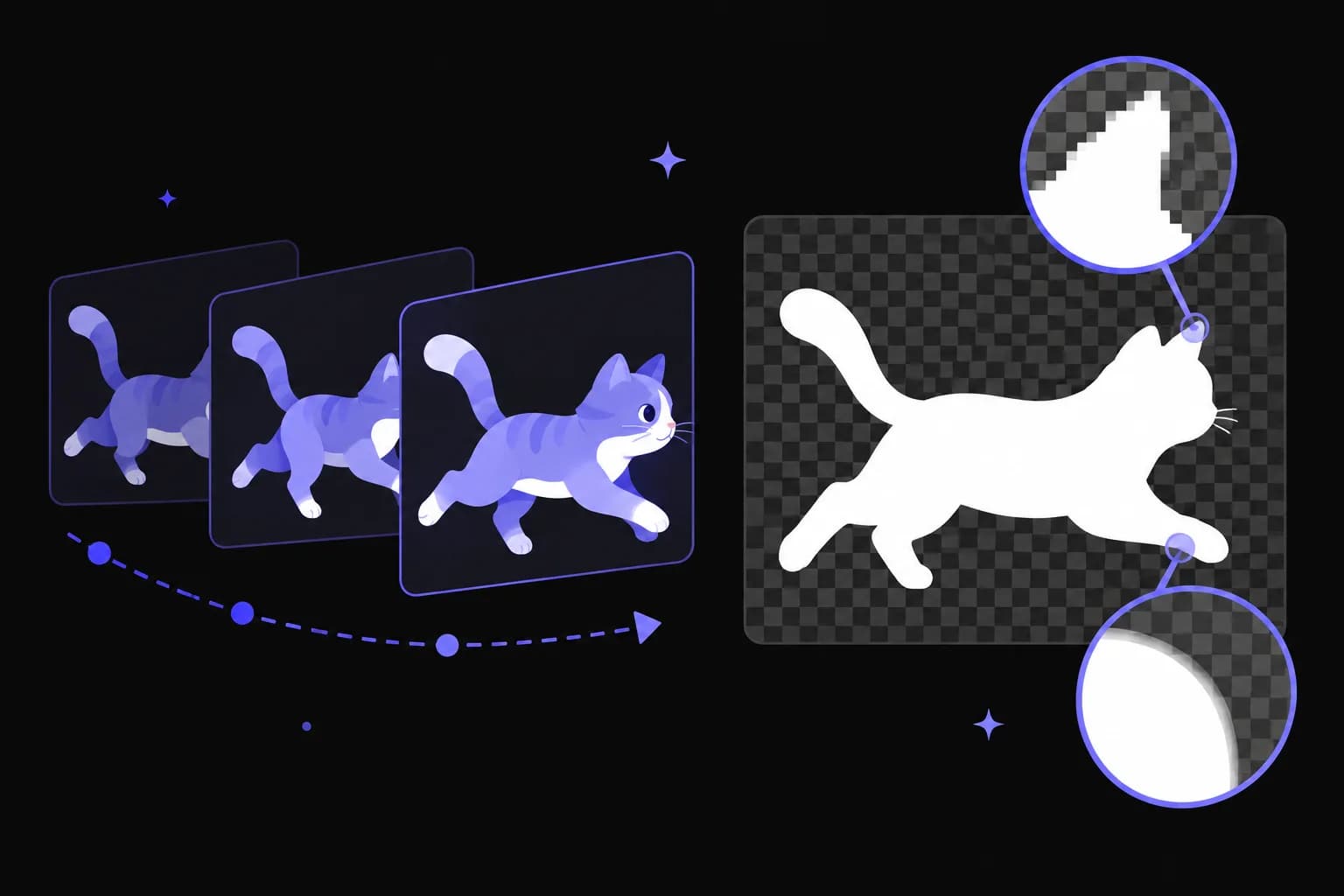
To remove a background from a GIF, you need to separate the subject in every displayed frame and export the animation with transparency enabled. Erasing the background of one frame is not enough, and downloading a file that looks transparent in an editor does not prove that the animation will work on a website or in a messaging app. The result also depends on what the GIF format can preserve.
That distinction matters for a waving person, an animated product, or a small reaction sticker. Each can look clean against a white preview while showing a pale outline against a dark interface. A converter may also change frame timing, leave trails behind a moving object, or turn an animated file into a still image. These are different failures with different fixes.
This guide separates subject extraction from animation export. You will learn when to start from the original video, how to review edges across a loop, and how to decide whether GIF is actually the right delivery format. The aim is a usable animation in its final setting, with a reusable master kept safely alongside it.
Can a GIF really have a transparent background?
Yes, a GIF can contain fully transparent pixels, but it cannot retain the smooth range of partial opacity used by a full alpha channel. The practical difference appears at the boundary of a subject: a pixel must effectively be present or absent instead of gently blending into whatever sits behind it.
MDN's image format guide documents GIF's indexed color model and contrasts it with formats that support fuller transparency, including PNG and APNG. That is a file-format distinction, not a promise that any particular converter handles those formats correctly. A transparent animation still needs a working export pipeline and an application that accepts it.
Think about a simple cartoon sticker with a solid outline. Most of its visible pixels are fully opaque, so GIF can be a reasonable fit. Now consider a person turning their head while loose hair moves against a window. Some boundary pixels contain both hair and background; turning that mixture into an on-or-off edge can make the hair appear brittle or uneven.
If you control the destination, test an animated format that supports graduated transparency before committing to GIF. If a client or platform specifically requires GIF, design for that limitation. A compact subject with deliberate outlines usually travels more reliably than a soft, photographic cutout.
Do not mistake the checkerboard in a preview for part of the picture. It is often only a transparency indicator. Place the exported file over an actual colored layer to find out whether those squares disappear as expected.
Should you start from the GIF or the original video?
Start from the original video or animation project whenever it is available, because a GIF may already have discarded useful color and edge information. Converting the GIF into another format makes it compatible with more tools, but it does not restore the original quality.
Ask whoever supplied the asset for the highest quality source before you begin. For a product turntable, that may be a camera recording. For an illustrated mascot, it may be the animation project or a sequence of transparent PNG frames. For a screen recording, it may be the recording before it was cropped and converted for chat.
Keep that source unchanged and make a working copy. Note the intended loop, the canvas size, and whether the final animation should play once or repeat. If the animation begins or ends with a pause, preserve that choice deliberately; a converter can otherwise make a calm gesture feel hurried or cause an abrupt jump at the loop boundary.
Prepare a representative test segment
Choose a short section that includes the hardest movement, not just the clean opening pose. Include the moment when a hand crosses the body, a product rotates to a narrow edge, or hair moves away from the face. A method that only succeeds on the easiest frame is not ready for the whole animation.
For a video source, our video background removal feature explains the extraction stage. Treat the animation conversion as a later step with its own checks. If you only need a still sticker, the image background remover may fit the task more directly, but it is not a substitute for processing every frame of an animation.
How do you remove the background without losing the animation?
Use a workflow that preserves all frames and their timing, then review the result as motion before choosing a delivery format. The essential steps are to extract the subject, keep a master with transparency, and assemble or convert the animation without flattening it onto an unwanted color.
- Save the original file and record its dimensions, timing, and loop behavior.
- Open the original video or full animation in a tool that understands moving images.
- Remove the background and inspect a short test containing difficult movement.
- Export a transparent master using an option supported by both the processing tool and the next editor.
- Import that master into an animation editor or converter that explicitly supports the desired output.
- Enable transparency for the GIF export and preview the complete loop.
- Test the downloaded file in the actual destination, including its light and dark backgrounds.
In BGRemover.video, the current video export interface distinguishes a transparent Pro Bundle from MP4 with a custom background. Do not read a general background-removal claim as proof of a direct animated GIF download. Check the export choices for your job and the contents of any downloaded bundle before building the rest of the workflow around them.
Similarly, a file picker accepting an image does not establish that every frame of an animated image will be processed. If your only source is a GIF, confirm the animation survives the import step. If it does not, use an animation-aware editor to prepare a supported moving-image source, and keep the original GIF available for timing comparison.
If the source has a white matte, the white-background GIF guide covers the specific risk of erasing white details inside the subject along with the surrounding background.
Avoid repeated conversions while experimenting. Each new lossy intermediate can complicate the diagnosis. Return to the transparent master when changing delivery settings instead of converting the previous failed export again.
Why do white outlines, missing pixels, or trails appear?
White outlines usually come from contaminated edge pixels or transparency lost during conversion, while missing pixels and trails can come from mask errors or animation-frame handling. Identify which stage introduced the defect before trying to repair it.
A halo that is already present in the transparent master belongs to the extraction stage. The source edge may include light from the original background, or the mask may retain a thin border. Making the entire subject slightly transparent does not solve that problem; it fades good detail along with the unwanted edge. Inspect the affected region at a useful zoom and compare it with the original.
A halo that appears only after GIF conversion points toward the output settings. Some exporters blend soft edges against a selected matte color before reducing them to GIF transparency. An edge prepared against white will be conspicuous on a charcoal interface. When the destination color is fixed, a deliberately chosen matte can sometimes look better, but it will make the asset less reusable elsewhere.
Trails behind a moving subject require a different investigation. Animated GIFs can use partial-frame updates and disposal behavior rather than repainting the entire canvas in the same way every time. If an editor changes how frames are cleared, old subject pixels may remain visible. Preview the unoptimized animation first, then compare it with the optimized export.
For hair, fur, and motion blur, see our guide to difficult background-removal edges. A cleaner source or a different output format can be more effective than endlessly tightening a mask until important detail disappears.
Which format should you use for stickers and web animation?
Use the format accepted by the destination that preserves the detail your animation needs; GIF is one option rather than the automatic answer. The right choice changes when you move from a website you control to a messaging platform with its own upload rules.
| Delivery choice | Suitable starting point | What to verify |
|---|---|---|
| Transparent GIF | Short, graphic animation with firm edges | Palette, hard-edge quality, frame timing, loop behavior |
| Animated PNG | Animation needing soft transparency | Destination support, file size, import behavior |
| Animated WebP | Web animation in a compatible publishing workflow | Platform acceptance and actual displayed result |
| Composited video | Social post with a finished background | Framing, captions, upload conversion, playback |
| Transparent editing master | Asset another editor will place over footage | Alpha interpretation and editor compatibility |
For a website sticker, ask whether the page has both light and dark themes. Test against both before approval. For a slide deck, import the actual exported file into the presentation software; a browser preview does not prove the deck will animate or preserve transparency. For a messaging sticker, check the platform's current requirements directly rather than recycling file-size limits from an old tutorial.
A finished social video often needs a visible background rather than a transparent animation. In that case, composite the subject over the final scene and export a normal delivery video. Our white video background guide covers one simple approach. This also lets you choose intentional spacing and shadows instead of depending on a platform to decide what appears behind transparent pixels.
Keep the master even when the delivery format is fixed today. A later website redesign may need a different canvas or background color, and the original extraction is a better starting point than a tiny compressed sticker.
How do you make the GIF smaller without ruining it?
Reduce unnecessary duration and empty canvas first, then test dimensions, frame sampling, and palette settings one change at a time. File size is only useful when the exported animation still communicates the intended motion and looks acceptable where it is displayed.
Start with the loop itself. A sticker that spends most of its time waiting may not need every idle frame, although removing a deliberate pause can change its personality. Crop unused borders with enough room for the subject's full movement. Check the widest hand gesture or furthest product rotation before you tighten the canvas.
Next, test the displayed dimensions. A huge source does not need to remain huge when the final asset sits beside a line of text. Export a few purposeful candidates and compare them at normal viewing size. Avoid judging only at a dramatic zoom level that the audience will never see, but do inspect edges closely enough to catch obvious damage.
Frame reduction can help when the motion remains readable. It can also turn a smooth hand wave into a stutter, so compare motion rather than assuming a particular frame rate is universally correct. Preserve frame delays consistently and check the transition from the last frame back to the first.
Finally, adjust palette and dithering settings. Fewer colors may suit a flat illustration but produce bands in a photographic face. Dithering can hide some banding while introducing grain around an edge. Keep a brief note of which setting changed in each candidate so that the smallest usable result is reproducible rather than a lucky accident.
How should you check accessibility and the finished loop?
Check whether the animation helps the message, whether viewers can understand it without motion, and whether its playback behavior creates an avoidable distraction. A decorative looping sticker and an instructional demonstration need different treatment.
The W3C guidance on accessible audio and video emphasizes planning alternatives for information delivered through media. For a silent animation, explain any essential meaning in nearby text or an appropriate text alternative. For a video-derived asset that originally relied on spoken instructions, removing the audio does not remove the need to communicate those instructions.
If you control the page, consider whether a still version communicates the same information more comfortably. A continuously moving decorative element can compete with reading even when its edges are perfect. Make motion a deliberate design choice, and coordinate playback controls or reduced-motion behavior with the page developer rather than assuming the file format handles them automatically.
Run the final check from the uploaded or embedded asset, not only the local download. Look at the first frame, the hardest motion, and the loop boundary. Test the background colors that viewers will actually see, and check whether the platform has resized or flattened the file. Confirm the surrounding text still makes sense if the animation fails to load.
Finish by saving the approved delivery file alongside the transparent master, original source, and export notes. That small handoff package prevents a future editor from having to reverse-engineer how the animation was made.
Build one clean loop before processing the rest
A reliable transparent GIF begins with the right source and ends with a check in the destination. Between those points, subject extraction, alpha preservation, animation timing, and GIF conversion each need attention. One successful preview frame cannot stand in for all of them.
Begin with a short, representative loop and decide whether GIF's hard transparency suits the asset. If the outline is graphic and the destination requires GIF, concentrate on clean masks, palette choices, and stable timing. If hair or translucent detail matters, keep a master with richer transparency and consider a different delivery format wherever the publishing workflow allows it.
For footage that needs subject extraction, start with BGRemover.video and review the current output choices before processing a full collection. Then complete the GIF assembly in a compatible animation tool, test the actual exported loop, and retain the original files. That sequence gives you a reusable asset and a clear way to diagnose problems when the next platform treats transparency differently.
Frequently asked questions
Can a GIF have a transparent background?
Yes. GIF can mark a palette entry as fully transparent, but it cannot preserve the graduated alpha of a soft PNG edge. This affects hair, shadows, and motion blur.
Does BGRemover.video export transparent GIFs directly?
Do not assume a direct GIF export. The current video editor exposes a transparent Pro Bundle and MP4 with a custom background; a separate animation editor may be needed to assemble the final GIF.
Why does my GIF have a white outline?
The edge may contain pixels already blended with a white background, or the GIF conversion may have discarded partial transparency. Inspect the source on a dark canvas before changing export settings.
Will converting a GIF to video restore lost detail?
No. Conversion can make a file usable in another workflow, but it cannot recover colors or detail already discarded by the GIF. Use the original video or animation project when available.
How can I reduce a transparent GIF file size?
Trim unnecessary duration, crop unused canvas, and test smaller dimensions or fewer frames. Check the motion and edge quality after every change instead of assuming the smallest file is acceptable.