AI Background Removal for Hair: Fixing Edge Problems 2026
Yash Thakker
Author
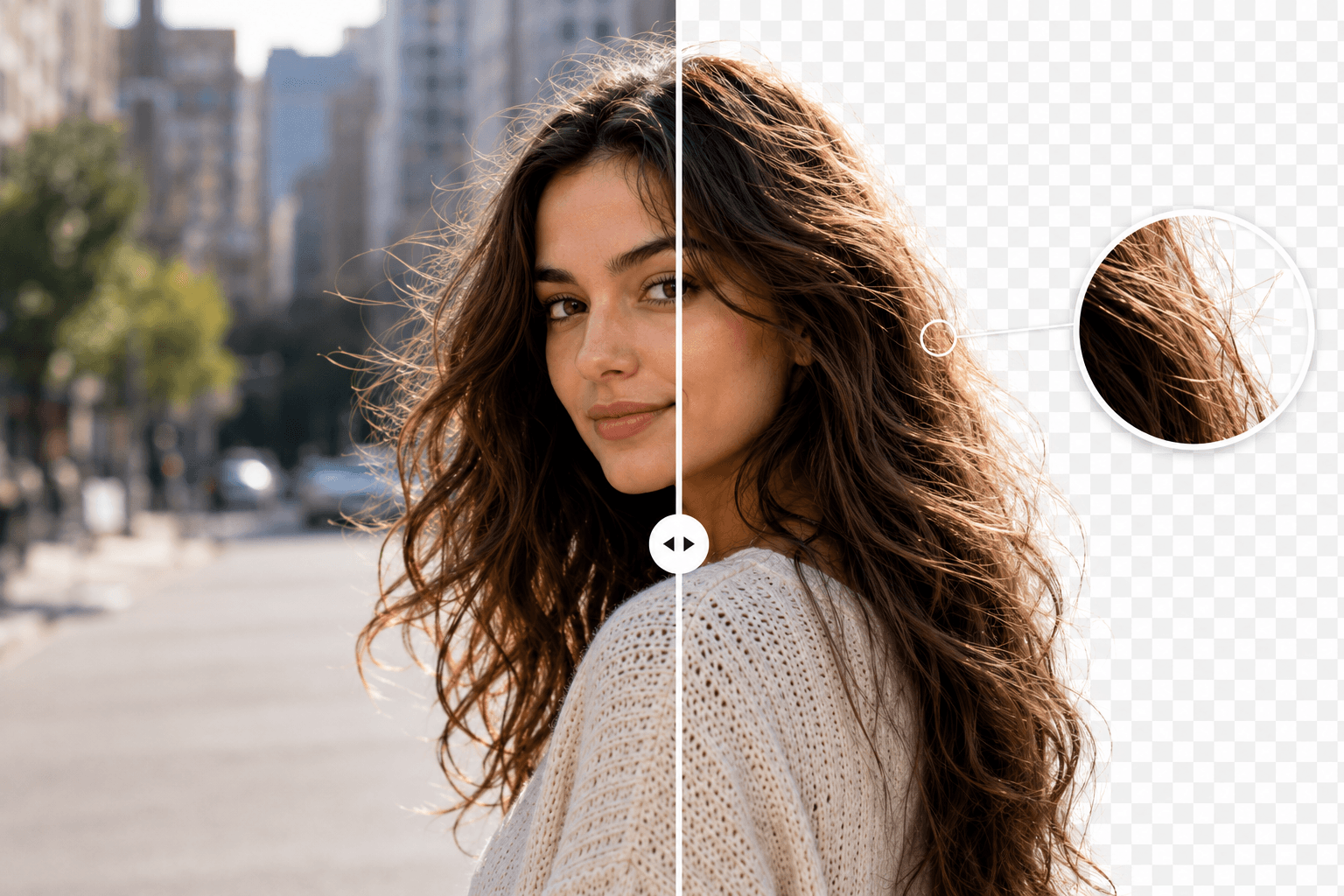
AI background removal struggles with hair because the boundary is often a mixture rather than a clean line. A fine strand may occupy only part of a pixel, and the original background can contribute color to that same pixel. When the portrait is placed over a new scene, the mixture becomes visible as a pale fringe, a dark halo, or an unnaturally clipped outline.
That does not mean every hair problem needs the same correction. Missing strands, retained background color, low-resolution source detail, and an export that discards transparency are different issues. Tightening the mask may improve one and make another worse. Video adds another challenge: an outline that changes slightly from frame to frame can distract even when individual paused frames look acceptable.
This guide explains how to diagnose those failures and improve the workflow for portraits, headshots, presenter overlays, and batches. It does not promise that a particular tool preserves every strand or infer a model's training data from its output. The useful test is the subject in your footage, against the background and at the size you actually intend to publish.
Why is hair harder to separate than a solid object?
Hair often contains thin, overlapping, and partially resolved detail that mixes with the scene behind it. A solid product edge may have a clear transition, while a hair boundary can include gaps, highlights, blur, and many strands smaller than the image can describe independently.
Consider a portrait with loose strands in front of a bright window. Some pixels belong mostly to hair, some mostly to the window, and others contain contributions from both. If a background remover treats all of those pixels as fully foreground or fully background, it has to make a compromise. Keeping them can preserve shape but retain light from the window; removing them can make the hairstyle look cut back.
This is why alpha matters. Instead of only describing a region, an alpha representation can retain different degrees of opacity. The MDN image-format guide distinguishes full alpha support in formats such as PNG from GIF's more limited transparency. The output format can therefore affect the edge even after the extraction step has done useful work.
The source also sets a limit. A small compressed image may contain no reliable distinction between a strand and a background pattern. Enlarging that file creates more pixels, but it does not guarantee recovery of the original hair detail. Start with the best available recording or photograph and judge what is actually visible in it.
For a broader view of the processing stages, our SAM 2 background-removal guide explains why segmentation and a finished composite are related but different tasks.
How can you tell which kind of edge problem you have?
Compare the original, the extracted subject, and the final export against several backgrounds. That comparison helps locate whether the problem began in source capture, masking, color contamination, or delivery.
A missing flyaway usually appears as a change in the subject's shape compared with the source. A halo appears as an unwanted border that may be much easier to see against one background than another. A hard, jagged outline may indicate limited source detail, an overly binary mask, or a format conversion that discarded partial transparency.
| What you see | Possible cause | Useful first check |
|---|---|---|
| Hair looks unnaturally trimmed | Fine detail excluded from the mask | Compare with the original at the same scale |
| Pale or colored fringe | Old background retained at the edge | Place the cutout on a contrasting background |
| Soft fog around the head | Mask includes too much background or excessive feathering | Inspect the boundary without a colored overlay |
| Jagged edge only after download | Export or conversion changed transparency | Compare the master with the delivery file |
| Boundary pulses during speech | Frame-to-frame mask variation | Watch head turns and hand crossings |
Do not diagnose the whole image from one zoomed corner. Check several areas, including the top of the head, loose ends, gaps between curls, and the region near shoulders. Some parts may need no correction at all.
Keep notes about when a problem becomes visible. If the cutout looks fine on the original pale scene but fails on a dark replacement, that is useful evidence about the edge mixture. If it fails only after upload, investigate the delivery path before changing the extraction settings.
Why does a white or colored halo remain around the hair?
A halo can remain because boundary pixels still contain color from the original scene, even when the broad foreground shape is correct. Changing the opacity of those pixels and correcting their color are not always the same operation.
Imagine dark hair photographed against a white wall. A fine boundary pixel may contain both hair and white wall. Keeping it unchanged over a dark replacement leaves a light fringe. Erasing it completely may remove the strand. A convincing result needs a useful balance of retained detail, appropriate opacity, and edge color.
This is why a global blur is often disappointing. It can soften the visible line while spreading unwanted background color across a wider area. Likewise, shrinking the whole mask can remove the halo at the cost of making the hairstyle smaller and cutting into the face or clothing.
Use a contrasting background as a diagnostic
Inspect the cutout on light gray, dark gray, and the intended replacement. You are not trying to make every pixel perfect under every imaginable condition, but those views reveal different kinds of contamination. A saturated test background can also expose gaps that are hard to see against a checkerboard.
If the editor offers local refinement, work on the affected region and compare it with the untouched version frequently. If the available workflow does not expose that control, try a clearer source or move the cutout into an editor that supports the needed correction. Check the current interface before planning a workflow that depends on a particular refinement control.
A background similar in brightness to the original can sometimes be more forgiving, but choose it because it suits the design. Hiding a bad edge against one color is not the same as creating a reusable transparent portrait.
What can you change before taking the photo or recording?
Improve focus, lighting, source quality, and separation from the background before relying on cleanup. A clearer source gives any background-removal workflow more useful information and often reduces the amount of intervention required.
Use a setting where the hair is visible against the scene without being overwhelmed by strong spill or glare. A plain background can help, but the useful condition is separation, not one universally correct backdrop color. Dark hair on a dark wall and pale hair against a blown-out window can both be difficult for different reasons.
Check focus on the face and the important hair boundary. Motion blur may be part of a natural recording, but unnecessary camera shake or poor focus can erase the distinctions you want to keep. Use a stable camera and record a short sample with the intended movement before filming a long take.
Avoid sending the source through several messaging or social-media conversions before editing. Ask for the original camera file when possible. If the only available image is already small and heavily compressed, be realistic about the final size and the amount of fine detail that can be preserved.
For a new headshot, our professional CV photo guide covers practical framing and lighting choices. For a presenter video, give the person room to turn and gesture without leaving the frame. The hardest moment often arrives after the still opening pose, when hair moves away from the shoulders or crosses a similarly colored object.
How do you review hair in a BGRemover.video workflow?
Process a representative source, inspect the boundary against the intended output, and verify the downloaded file before committing to a full collection. Treat the preview as a useful stage rather than proof that every export and destination will preserve the same result.
- Keep the original and select a source that includes the hair detail important to the project.
- Use the image background remover for a portrait or the video workflow for moving footage.
- Examine loose strands, curls, gaps, and the hair-to-shoulder boundary in the processed result.
- Compare the subject over light, dark, and intended replacement backgrounds where the workflow permits it.
- Export the appropriate master or finished composition using the current options.
- Open the download in the next editor or publishing destination and repeat the key checks.
The current video interface distinguishes a transparent Pro Bundle from MP4 with a custom background and displays credit requirements for the selected job. Those are output-workflow choices, not guarantees about the quality of a particular hair mask. Check that the next application supports the chosen transparent output before processing many clips.
Avoid making a winner claim from a single attractive example. A portrait with controlled lighting and a calm background is an easier case than windblown hair in front of foliage. Use examples that represent your actual work, including the difficult ones, and retain the results so a future workflow change can be evaluated against the same material.
Why can hair flicker in video even when a photo looks good?
Video hair can flicker when the estimated boundary changes between frames as the subject moves, becomes blurred, or passes in front of a confusing background. A photo review examines one state; a video review must also examine consistency over time.
The research paper Robust High-Resolution Video Matting with Temporal Guidance describes using temporal information through a recurrent architecture rather than treating every frame as an independent image. That supports the importance of time-aware processing, but it does not establish which architecture a commercial tool uses or guarantee a particular result on your clip.
Watch the actual motion that matters: a head turn, a hand passing near the hair, a brief occlusion, or a change in light. Pause around a visible defect to understand it, then return to normal-speed playback to judge whether the correction is effective. A frame that looks slightly imperfect at high zoom may be acceptable in motion, while a tiny boundary shift can be very noticeable when repeated.
Be cautious with simple temporal averaging. Blending the previous mask into the next without accounting for movement can leave a trailing outline. Smoothing is not automatically an improvement; it must preserve the subject's motion as well as reduce instability.
For a facecam overlay, inspect the final composition at its actual on-screen size. For a full-screen interview, use a stricter review of fine detail. If only one brief gesture fails, a different take or a meaningful cutaway may solve the editorial problem more cleanly than applying an aggressive correction to the entire recording.
How should you handle curls, coils, and different hairstyles in a batch?
Review the natural shape of each hairstyle and test a varied set of portraits before applying a common workflow to the whole batch. Consistency should mean a shared quality standard, not forcing every outline into the same smooth shape.
Curls and coils can create many small gaps and irregular boundaries. Long straight hair can contain fine loose ends, while short hair can reveal fringing close to the scalp. These are different visual structures. A correction that makes one portrait look cleaner may remove characteristic detail from another.
Choose representative test images across the actual set: different hair colors and textures, pale and dark backgrounds, glasses, and clothing near the hair. Compare each result with its own original. Do not infer a model's training distribution or claim a universal bias from a few examples, but do record the specific failures you observe so the workflow can be improved.
The bulk background-removal feature can help organize repeated extraction work. It does not remove the need to inspect outputs individually. Keep a review list that identifies portraits needing a different source, local correction, or a more forgiving final composition.
For a staff directory or campaign, review the group layout as well as the individual files. Similar face scale, spacing, and background treatment help the collection feel consistent, while each person's hair should retain its own recognizable shape. Save originals and approved cutouts separately so later changes do not require recovering detail from a small published thumbnail.
Which export checks prevent a good cutout from becoming a bad one?
Confirm that the delivery format preserves the transparency you need and that the receiving application interprets it correctly. A clean master can be damaged or flattened during conversion, resizing, or upload.
For still images intended as transparent assets, choose an output with appropriate alpha support and test it over a real layer. A white preview does not prove the background is opaque, and a black preview does not prove the cutout failed. The viewer may simply be choosing a default display color behind transparent pixels.
For GIF delivery, remember that its limited transparency cannot reproduce the same soft boundary as a full-alpha master. Our transparent GIF guide explains why hair can become harder or develop a fringe during that conversion. Keep a richer master even when the final destination requires a simpler format.
Check resizing at the intended display size. Fine strands may become less distinct in a small avatar, and an overly sharpened edge can become conspicuous after reduction. Export a purposeful size rather than repeatedly scaling the same compressed file through several applications.
Finally, inspect the uploaded or embedded version. A platform may alter the asset after it accepts the file. If the problem appears only there, compare it with the approved local export before repeating the background-removal step. Keep the source, the master, and the delivery file distinguishable so you can identify exactly where the change occurred.
Preserve the hairstyle, then judge the final composition
Good hair background removal keeps the subject recognizable while producing a boundary that works in the intended design. That requires understanding the difference between missing detail, contaminated edge color, unstable video masks, and format limitations. A single global correction rarely addresses all four.
Start from the clearest source available and test the difficult areas early. Compare the cutout with the original, view it against contrasting backgrounds, and watch moving footage at normal speed. Keep realistic expectations about detail that was never captured, and use local refinement, a different source, or an editorial change when the automatic result is insufficient.
Try a representative portrait or clip in BGRemover.video and review the actual export before preparing the rest of the project. Choose the workflow based on repeatable results from your material rather than an unsupported promise of perfect strands. The final check is simple: the hairstyle should still look like the person, and the edge should support the composition without drawing attention to the edit.
Frequently asked questions
Why is hair difficult for an AI background remover?
Fine strands and motion blur can mix hair and background within one pixel. A hard selection may remove those mixed pixels or retain the old background color, producing missing detail or a halo.
Will blurring the mask fix a white outline around hair?
Not necessarily. A halo can contain the old background color, so blurring the boundary may spread the contamination instead of removing it. Identify whether the problem is the mask, edge color, or export.
Which background remover is best for hair?
Evaluate representative portraits and clips in the actual output workflow. A tool name or a clean demonstration image does not establish how it will handle your lighting, hair texture, and replacement background.
Why does hair look fine in a still frame but flicker in video?
The estimated boundary may change between frames as the subject moves or becomes partially hidden. Review difficult motion and the exported playback, not only the first preview frame.
Can a better export restore strands missing from the original photo?
No. A larger export cannot reliably recover fine detail that the source never captured. Improve the lighting, focus, or source file when the original boundary is unclear.
Should every portrait in a batch use the same cleanup settings?
No. A shared workflow helps consistency, but different hair, clothing, lighting, and backgrounds can produce different errors. Review representative cases first and inspect each final portrait.