Professional CV Photo: Take and Edit a Headshot in 2026
Yash Thakker
Author
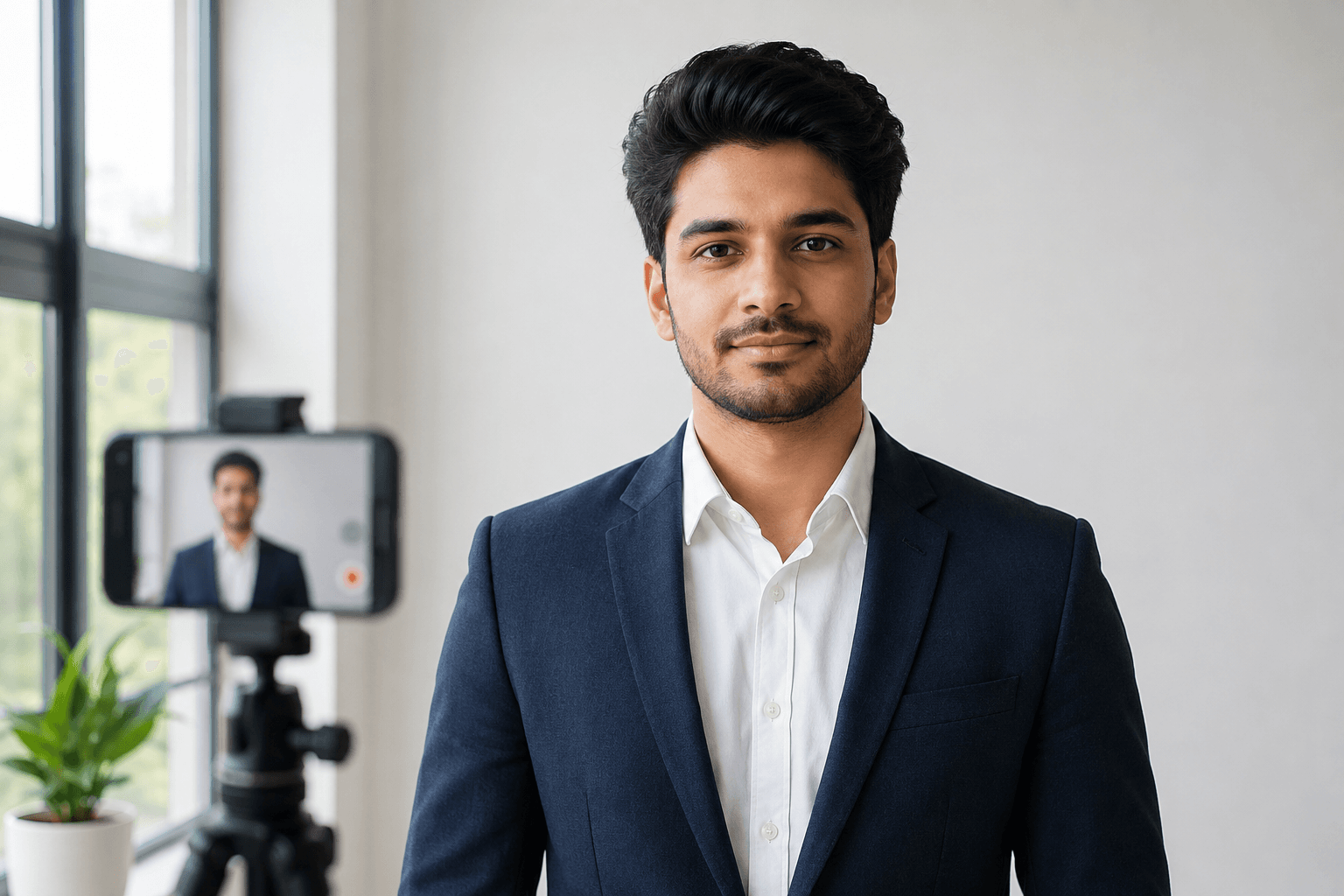
A professional CV photo should be clear, recognizable, and appropriate for the application that will use it. Before taking or editing one, check whether a photograph belongs in that application at all. Employer instructions, document formats, and local conventions can differ, so a photo should be a deliberate choice rather than an automatic addition to every CV.
If you do need one, a simple home setup can be a useful starting point. A steady phone, soft light, and a calm background give you the essentials for a natural head-and-shoulders portrait. Editing can improve a crop or replace a distracting room, but it cannot reliably restore focus that was never captured or make a heavily altered face a better representation of you.
This guide takes you through checking requirements, arranging the light, positioning the camera, choosing a source image, cleaning the background, and testing the result in the actual document. The goal is not a promise about hiring outcomes. It is a usable photograph that fits its purpose and still looks like the person who will attend the interview.
Should you include a photograph on this CV?
Include a photograph only after checking the instructions and expectations for the specific application. Do not infer a universal rule from one template, one country label, or a profile page that happens to accept an image.
The Europass guidance for creating a CV includes a professional photograph among its presentation suggestions. That is guidance for a particular service and format, not proof that every European employer expects the same thing. A vacancy may ask for a different format, or an employer's application system may separate the CV from a profile image.
Read the job notice and application instructions first. If the employer provides a template, use its requirements. If the guidance is unclear and the choice matters, ask the relevant careers service or recruitment contact rather than relying on a broad online claim. Keep a version of the CV without the photograph so the document can be adapted without rebuilding it.
Distinguish a CV image from a professional networking profile or staff biography. Those may use photographs for recognition even when the application document does not. You can prepare a good headshot for those settings without assuming it belongs in every file you submit.
The photograph should not displace the evidence of your skills and experience. Review the whole page after adding it: if the image makes the document cramped or pushes relevant material onto another page, reconsider the layout or whether the image is needed for that particular use.
Can you take a suitable headshot with a phone?
Yes, a phone can produce a suitable headshot when the lighting, focus, distance, and framing are controlled. Judge the actual file rather than assuming that a camera category guarantees quality.
Use a clean lens and the camera mode that gives you a clear, undistorted result. Place the phone on a stable support or ask someone to take the picture. A timer can help you settle into position without reaching toward the camera or holding the phone close to your face.
Avoid an extremely close camera position. Perspective changes with distance, and a close wide-angle view can make facial proportions look different from a more comfortable portrait distance. Step back enough to frame the head and shoulders naturally, then crop modestly if the source has sufficient detail.
Record a quick setup test
Take a few test images and inspect them before recording many variations. Check that the eyes are sharp, the face is not lost in shadow, and bright areas still contain detail. Look for reflections in glasses and a distracting object directly behind the head.
Keep the original image file. A screenshot of the preview or a copy passed through a messaging app may be smaller or more compressed than the camera source. That can make later background removal harder, particularly around hair and glasses.
If the result is blurred, improve the support or light before turning to editing. A larger export setting will not recreate a sharp source. The simplest useful correction may be another photograph with the camera held steadily and the subject clearly in focus.
How should you arrange the light and background at home?
Use broad, even light that makes the face readable, and choose a background that does not compete with the portrait. A window can work well when you position yourself thoughtfully and check the camera image.
Face toward the light or turn slightly so it shapes the face without leaving one side difficult to see. Avoid placing a very bright window directly behind you unless you can control the resulting exposure. The room may look balanced to your eyes while the camera records a dark face against a bright background.
Watch mixed light sources. Daylight and a strongly colored room lamp can create different tones across the face. You do not need a studio lighting kit to improve that situation; simplifying the sources and moving a little can be enough. Take a test and compare rather than making large corrections after the shoot.
A plain wall or uncluttered area is a practical backdrop. Leave some separation so the head does not merge with a strong shadow directly behind it. If your hair or clothing closely matches the wall, choose a different position or background that gives the outline more definition.
You can replace a distracting scene later using the image background remover, but a better source still helps. Editing should not be the first response to a setup issue you can fix quickly. Clear light and visible edges give the whole workflow a stronger starting point.
What should you wear and how should you pose?
Choose clothing that fits the intended professional context and lets the face remain the main focus. Aim for a comfortable, natural posture rather than a rigid pose that does not resemble you in ordinary conversation.
Harvard's professional headshot guidance suggests considering what you would wear for an interview or presentation and keeping the outfit simple, including solid colors. Use that as a practical starting point, then adapt to the actual role and your normal presentation rather than assuming everyone needs the same formal suit.
Check collars, shoulders, and visible accessories before recording. A small fold may be harmless, but a twisted collar or partly hidden necklace can become a distraction once you notice it. Avoid spending the session trying to solve through retouching what you can adjust before the photograph.
Position the camera near a natural eye line. Relax your shoulders, keep your chin comfortable, and try a few small changes in angle rather than dramatically different poses. A slight turn can feel more natural for some people, while a straightforward view may fit others better.
Take several expressions and choose one that feels credible to you. A neutral expression and a small smile can both be suitable depending on the context. Leave room around the head and shoulders so you can prepare a rectangular CV crop or a circular profile image without cutting into the hairline.
How do you choose the best source image?
Choose the photograph with the clearest face, natural expression, and usable framing before considering background edits. A clean wall does not compensate for closed eyes, missed focus, or an expression you do not want to use.
Compare a small set of candidates side by side. Look at the eyes, mouth, posture, and shoulder line at normal viewing size. Then inspect focus and edge detail more closely. This two-step review prevents you from selecting solely on a tiny preview or rejecting a natural image because of an irrelevant pixel-level imperfection.
Check whether the photo looks like you now. A technically polished but outdated image may be less useful than a current, straightforward one. Avoid selecting a heavily filtered source that has already altered skin texture, face shape, or eye appearance before you begin editing.
| Check | What to look for |
|---|---|
| Recognition | Current appearance and natural expression |
| Focus | Clear eyes and useful facial detail |
| Exposure | Readable face with preserved highlights |
| Framing | Space around hair and shoulders |
| Background | Manageable distractions and visible subject edges |
| Source quality | Original file rather than a compressed screenshot |
Ask a trusted person to compare the final candidates if you find it difficult to judge your own expression. Give them a specific task: choose the clearest and most recognizable portrait, not the one that looks most retouched. Keep the rejected originals until the application version is finished in case the chosen image has a crop or edge problem.
How do you clean the background without making the portrait look artificial?
Replace the setting that needs improvement, preserve the person's natural outline, and review the cutout against the intended background. A restrained edit is easier to trust than a portrait whose hair, shoulders, or face has been visibly reshaped.
Start with a copy of the selected photo. Use the background-removal workflow, then inspect hair, glasses, ears, and the collar. Pay attention to small gaps where the original scene can remain, such as between loose hair and a shoulder. Compare with the source to distinguish a real feature from an editing artifact.
A simple neutral replacement is a useful starting point when the application gives no specific requirement. Choose a color that keeps the face clear and the clothing boundary visible. White can be appropriate, but a white shirt on pure white may need more careful separation than the same portrait on a gentle gray.
Do not erase fine hair just to produce an unnaturally sharp line. Our hair-edge troubleshooting guide explains why missing strands and color halos need different diagnoses. If the automatic result is poor, a better source photo or a more controllable editor may be the practical next step.
When the desired composition control is unavailable, export a suitable transparent portrait and complete the background placement in a compatible editor. Review the actual export options and processing requirements rather than assuming every output is unlimited. Keep the original so you can verify that the cleanup improved the setting while preserving your appearance.
How much retouching is appropriate for an application photo?
Use retouching to correct practical presentation problems while keeping the image a faithful representation of you. Crop, exposure, and background adjustments can help; changes that substantially alter your appearance can undermine the purpose of the photograph.
Begin with reversible edits where your software supports them. Adjust one thing at a time and compare with the source. A small exposure change may be useful, while excessive smoothing can remove natural texture and make the face look synthetic. Strong sharpening can also create harsh edges around hair and glasses.
Be careful with automatic portrait enhancements. Review what changed rather than accepting a general beautify label. If the tool changes face shape, eye size, hairline, or other recognizable features, decide whether the result still serves the application accurately. A professional photo does not require an invented version of your appearance.
Avoid replacing the clothing or setting in a way that implies credentials, employment, or a location that the original portrait does not establish. A neutral background is usually easier to interpret than a simulated office, uniform, or institutional scene. The image should support recognition rather than carry unsupported claims.
Our guide to removing backgrounds without Photoshop separates the background task from a larger retouching project. Keep those tasks distinct in your process as well. If the source already looks clear and natural, the appropriate edit may be only a crop and a small correction to the background.
What size and file should you use in the final CV?
Follow the application system's requirements and test the image inside the actual document or profile layout. There is no single photo size or file format that fits every employer, template, and publishing destination.
Keep a high-quality master, then prepare a delivery copy for the specific use. A CV image does not need to consume most of the document's file size, but it should remain clear at its displayed dimensions. Avoid enlarging a tiny avatar for a larger printed or PDF layout.
Check whether the final design should have a visible background or remain transparent. A finished neutral-background image is often straightforward to place in a document, while a transparent portrait may behave differently depending on the template and export process. Open the final PDF or uploaded preview to confirm that the result matches the editing canvas.
Review the whole document after insertion
Look for text wrapping, shifted margins, or a photograph that pushes important experience onto another page. Confirm that the image does not overlap headings or contact details. If you create several CV versions, check each one rather than assuming the layout remains identical after changing the content.
For a separate profile page, preview its crop independently. A circular avatar can remove corners visible in a rectangular CV image. Keep enough room around the face and verify that compression has not made the outline look rough. Save the original, edited master, and final application copy separately so a different upload requirement does not force you to start again.
What final checks should you make before submitting?
Review the photo in context, confirm it fits the application instructions, and make sure the final file opens correctly. The final acceptance test is the submitted document or profile, not only a good-looking editor preview.
Check recognition first: the face should be clear, current, and natural. Inspect hair, glasses, and clothing for missing parts or an obvious cutout border. Confirm that the crop leaves enough space and that the background does not introduce a distracting gradient, pattern, or color cast.
Next, check the document. Read the contact details and relevant experience after the image is inserted, inspect page breaks, and verify the requested format and file-size limit. A photo is only one small part of a useful CV, and it should not reduce the readability of the information that supports your application.
If the employer does not request a photo or the conventions for the application suggest leaving it out, use the version without one. You can keep the headshot for a professional profile or another setting where it serves a clear purpose. The time spent taking it is not a reason it must appear everywhere.
Retain the source and notes about the successful setup. If you need an updated portrait later, knowing the camera position, light, and background can make the next session simpler. A repeatable process is more valuable than relying on a heavily edited result that is difficult to reproduce.
Keep the photo clear, current, and appropriate
A professional CV photo starts with a decision about whether the application needs it. When it does, a simple setup with steady framing, readable light, and a natural expression gives you a strong foundation. Background cleanup can improve the result, but it should preserve the face, hair, and clothing that make the portrait recognizable.
Choose the source carefully, make restrained edits, and inspect the final document after the image is placed. Keep a photo-free CV version and prepare separate crops for other professional profiles. That approach lets the same source serve several uses without assuming that every application has identical expectations.
If the portrait is good but the setting distracts, try BGRemover.video for the background-removal stage and review the output before submitting it. Use the current export choices, keep the original, and check the finished file in its destination. The result should look like you, fit the instructions, and leave your experience and skills easy to read.
Frequently asked questions
Do I need a photo on my CV?
Check the employer instructions and the conventions for the specific application. Guidance varies by format and context; the existence of a photo field does not mean every CV needs a photograph.
Can I take a professional CV photo with a phone?
Yes, a phone can be suitable when the image is sharp, well lit, and framed naturally. Use the original file and check the final result at the size it will appear in the application.
What background should I use for a CV photo?
Choose a simple background that keeps the face clear and fits the application instructions. A neutral color is a practical starting point, but avoid a replacement that erases pale clothing or leaves a halo.
How much should I edit a headshot?
Correct practical issues such as crop, exposure, and a distracting background while preserving your recognizable appearance. Avoid changes that make the image misleading or unlike how you currently look.
Does a high-resolution export fix a blurry photo?
No. Exporting more pixels does not reliably restore focus or detail missing from the source. Take another photograph when the original is visibly blurred.
Can the same photo be used for a CV and a profile page?
Often, but prepare each crop separately and check the relevant requirements. A small rectangular CV image and a circular profile avatar can frame the same portrait differently.