Best Background Removers: How to Compare Them in 2026
Yash Thakker
Author
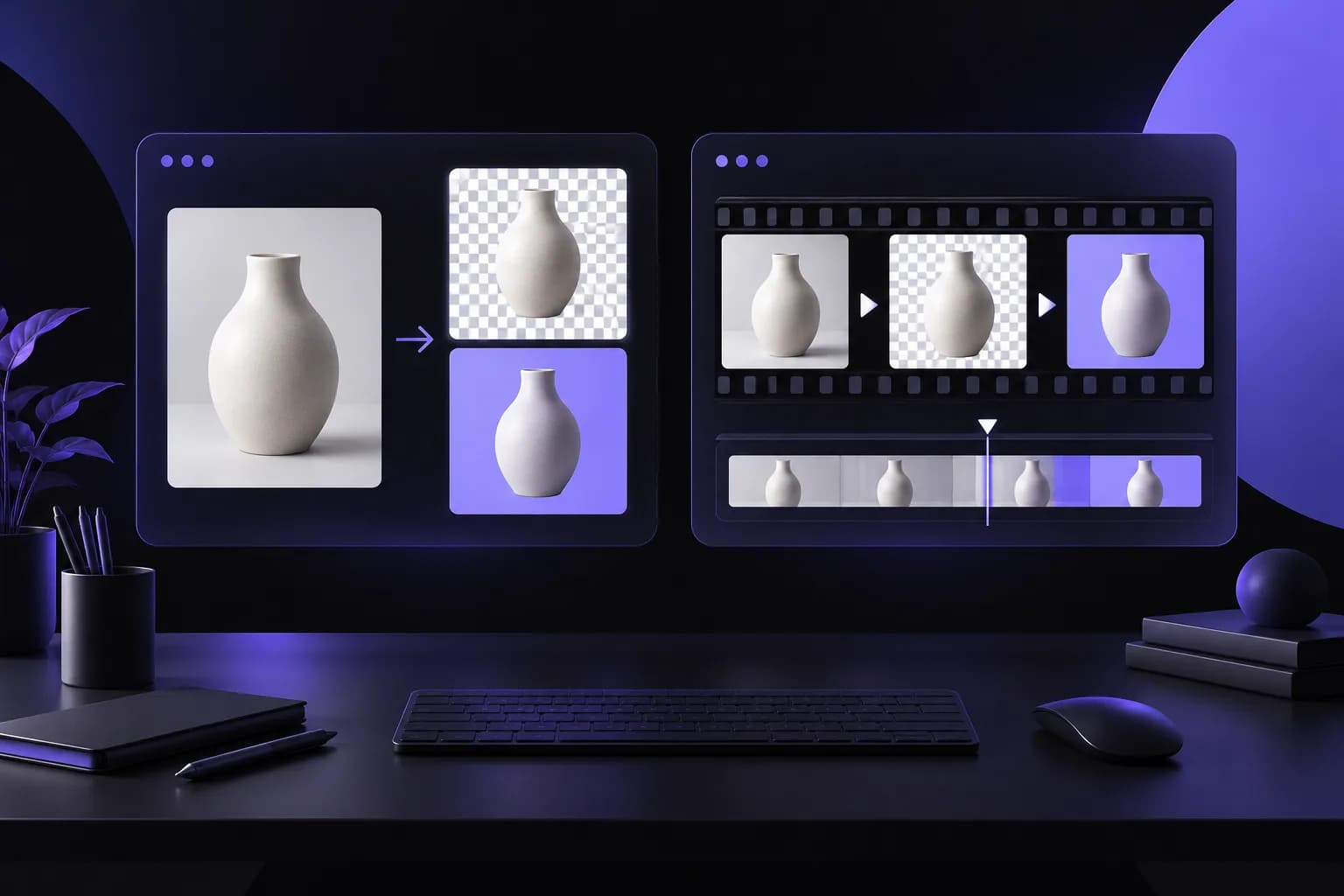
The best background remover for a studio product image may not be the best fit for a moving presenter or a folder of delicate clothing photos. Those tasks share a name, but they put different demands on selection, fine edges, timing, and export. A meaningful comparison needs to start with the files you actually create.
This article is a selection guide, not a hands-on benchmark. It does not claim that we processed a controlled test set through every named service, measured a winner, or verified a universal accuracy score. Instead, it explains how to build a small comparison that you can inspect and repeat, using documented product workflows as candidates rather than treating marketing promises as results.
Update — October 26, 2026: Canva launched its first image model, Canva Craft, on October 22. It generates and layers images rather than removing backgrounds; see what Canva Craft means for cutouts and video.
The method is practical: define the deliverable, choose representative originals, compare the downloaded outputs, and record the effort needed to make them usable. You can apply it to a single purchase decision or keep it as a review process when your sources, tools, or publishing requirements change.
What does best mean for your project?
Best means the workflow reliably produces the asset you need at an acceptable total cost and effort. It does not necessarily mean the most impressive promotional cutout or the largest feature list.
Start with a sentence describing the deliverable. For example, you need transparent product images for a designer, a presenter over a slide deck, or completed clips for a social channel. Include the important constraints: reusable transparency, exact garment details, consistent framing, or a particular receiving editor.
Then distinguish essential requirements from preferences. Losing a product handle may be unacceptable, while a small difference in automatic centering may be easy to correct. A video without its original sound may be unusable for a spoken lesson even if the silhouette looks clean. Those priorities should be set before comparing outputs.
Write an acceptance rule that another person could apply. The whole sleeve remains visible is clearer than professional quality. The export opens with transparency in the design application is clearer than supports PNG. A requirement becomes useful when it describes an observable result.
The BGRemover image workflow and video workflow are separate starting points because the deliverables differ. Evaluate the relevant path rather than assuming that a good result in one establishes the other. A narrow definition of success makes the comparison fairer and helps you avoid paying for features that do not contribute to the actual project.
Which tools belong on a current shortlist?
Include only tools with a documented workflow for the media you need, then verify the current account and export conditions directly. Product capabilities change, so an old comparison should not be treated as a permanent feature map.
BGRemover offers image and video background-removal workflows. Erase.bg also now documents a video-removal flow, so describing it as categorically image-only would be outdated. Canva documents a video background remover, and Adobe Express documents its own video background-removal feature.
Those references establish candidate workflows, not equivalent quality or identical file support. Do not infer an alpha-capable export, unlimited usage, or a particular processing time merely because a page says remove background. Verify the specific output that matters to you.
| Candidate type | Why it might fit | What to verify |
|---|---|---|
| Dedicated background-removal service | Focused separation and replacement workflow | Output modes, review process, and credit conditions |
| Design platform with removal | Cutout stays near the final design work | Available media types and reusable export options |
| Timeline editor with selection tools | Removal fits into a larger video edit | Learning effort, refinement, and format handoff |
| Model-based local pipeline | More control over processing stages | Hardware, setup, maintenance, and delivery encoding |
Keep the shortlist small enough to evaluate properly. Two or three plausible candidates tested with your actual material can be more useful than ten names reviewed only from landing pages. Our Erase.bg and BGRemover comparison shows how to separate a documented capability from an unmeasured quality claim.
If your project specifically requires video, the ten-workflow shortlist provides documented candidates across browser tools and desktop editors. Use it to choose a trial set, not as a quality ranking.
What should a representative test set contain?
A representative test set should cover ordinary work and the failure cases that would be costly in your project. It does not need to be huge, but it should not consist entirely of easy opaque objects on plain backgrounds.
For a shop, include a typical product, an object with an opening, a pale item, and any delicate material that appears frequently. For a portrait workflow, include hair against a similar background and a pose with a gap between arm and torso. For video, include the gestures and occlusions your presenters actually make.
Use originals rather than screenshots of other tools' previews. Preserve the same resolution and compression across candidates so input differences do not quietly bias the result. If a service requires a conversion, record that conversion as part of its workflow.
Choose samples before seeing results
Selecting the test set in advance reduces the temptation to choose flattering examples for a preferred tool. Keep both successful and unsuccessful cases in the record. A tool may be a strong fit for most of your material while still requiring a clearly defined exception path.
Do not use sensitive client footage simply because it happens to be available. Choose material you are authorized to process under the relevant service conditions. Synthetic or self-recorded samples can help explore a workflow, but make sure they resemble the real task closely enough to reveal useful limits.
For apparel, the clothing-photo guide identifies details such as lace openings, straps, and translucent panels that deserve explicit inclusion. A benchmark is only as relevant as the examples it asks the tools to handle.
How should you inspect still-image quality?
Compare subject completeness, unwanted background, and boundary appearance separately, using the original image as the reference. Combining everything into one vague score makes it harder to understand why a result is useful or flawed.
First check whether the intended foreground is intact. Inspect handles, straps, fingers, hair, and small attachments. A visually clean outline is not a success if the tool removed a real part of the product. Next, look for background remnants inside holes or between limbs.
Then inspect the boundary over contrasting backdrops. A pale fringe can hide on white and appear on dark gray; a dark edge can behave in the opposite way. These diagnostic backgrounds help expose defects, but the final judgment should also include the intended composition.
Review at both a useful close-up and the actual display size. Extreme zoom can exaggerate a minor artifact that viewers will never notice, while a thumbnail can reveal that the subject lacks separation even when the edge looks technically tidy. Your acceptance standard should match the role of the image.
Check that the output has not unexpectedly changed the foreground. Background removal should not be confused with generative restyling that may alter texture or detail. If the workflow includes enhancement, record it as a separate operation and evaluate its effect. Our hair and edge-quality guide offers a more focused review for difficult boundaries, but a fair comparison always returns to the original subject and the intended use.
What extra checks does video require?
Video requires temporal review, subject continuity, and a correct audiovisual export in addition to the still-image checks. One attractive frame cannot demonstrate that a clip remains usable through movement.
Watch each result at normal speed without pausing first. Note where the outline draws attention or the subject appears to lose a part. Then inspect those moments more closely. This sequence keeps the real viewing experience central while still helping you locate individual defects.
Include moments where a hand crosses clothing, the person turns sideways, or another object passes in front. If the subject briefly leaves the frame, check what happens when they return. Do not assume that a successful opening frame establishes stable selection for the rest of the clip.
Compare duration and audio with the original. A clip that ends early, changes timing, or loses speech may fail the workflow even if its cutout looks acceptable. If the output is silent by design, confirm that your process can restore the correct audio without drift.
Record any manual intervention. A refined result can be valuable, but it should not be described as fully automatic if you corrected selections or split the sequence into easier parts. Count that work when comparing effort.
For technical readers, the SAM 3 workflow guide separates selection from compositing and export. That distinction applies to applications too: the whole delivery path must work, not just the foreground mask shown in a preview.
How do you verify transparency and file compatibility?
Verify the downloaded asset in the application that will receive it, placed above a contrasting background. File extensions and preview checkerboards are insufficient evidence that transparency survives the entire workflow.
For images, compare dimensions and confirm that the foreground can be reused without an opaque rectangle. The W3C PNG specification defines support for transparency information, but a PNG file can still contain an entirely opaque composition. The format's capability is different from the contents of a particular export.
For video, test the actual container and codec combination produced by the service. A player showing black may be displaying transparent areas against black, or the file may already be flattened. Importing it into the intended compositing editor and placing it over color helps distinguish those possibilities.
If the project only needs a completed scene, a composited delivery file may be enough. If the subject will be reused across several backgrounds, a compatible transparent intermediate may be essential. Keep those requirements separate so a tool is not penalized for lacking an output you do not actually need, or praised for an output your editor cannot use.
Record any conversion required after download. If conversion removes alpha, changes timing, or takes substantial effort, that belongs in the comparison. Our transparent-background guide covers the difference between an editable asset and a finished composition. The best workflow is the one whose output reaches your destination correctly and predictably.
How should cost and speed be measured?
Measure the effort and expense required to produce accepted deliverables, not just the advertised price or the fastest processing run. The complete task includes preparation, upload, review, corrections, conversion, and handoff.
Time the same type of job for each candidate. Note whether the model or application was already loaded, whether the source needed conversion, and whether network conditions affected upload. A first run and a repeated run can differ, so label them clearly if both are relevant.
Track correction effort separately from waiting. A longer background job may leave you free to do other work, while a quick result that needs repeated manual repair consumes direct attention. Both can affect a deadline, but they are not the same cost.
Check current purchase conditions in the account you will use. Credits, export modes, source size, and plan restrictions can change the practical price. Avoid repeating an old monthly figure or unlimited claim without verification. For BGRemover, use the current credit and export information shown in the application.
Also record rejected outputs. Counting only successful exports can make an unreliable workflow appear cheaper than it is. A useful summary might say that most ordinary items needed no correction while delicate fabric required another approach. That statement is more actionable than a universal accuracy percentage with no visible methodology.
If you publish the comparison, include the date and the limits of the sample. A result on your files is evidence for that workload, not proof of superiority across every subject, device, or future product version.
How do you turn the findings into a decision?
Choose the candidate that meets your essential requirements with acceptable effort, then document its exceptions and a fallback. A decision does not need a single overall numerical score to be defensible.
Create a short result sheet for each sample: accepted, accepted after correction, or rejected for the intended use. Add the reason and the time spent on correction. Keep the exported examples where you can review them later. This makes the choice visible to a colleague rather than dependent on your memory.
Look for patterns. One tool may fit routine catalog images while another fits moving presenters better. If your work spans both, decide whether the convenience of one service outweighs the quality or effort difference. A split workflow can be reasonable when the boundaries are clear.
Establish a fallback for the hardest cases. That might be a reshoot, a different background, or deliberate manual refinement. A practical workflow acknowledges exceptions instead of pretending that automatic removal eliminates all judgment.
Revisit the comparison when something material changes: a new camera, a new product category, a changed export destination, or a service update that affects your results. You do not need to repeat the entire process for every minor interface change.
When you are ready to evaluate BGRemover, start with a representative file in BGRemover.video and carry it through review and delivery. The useful outcome is a workflow you can explain and repeat, supported by actual outputs rather than an unverified claim that every major tool was tested.
Frequently asked questions
Which background remover is best?
The best fit depends on your source material and required deliverable. This guide does not declare a measured winner; it gives you a repeatable way to compare actual outputs and correction effort.
Does this article report a hands-on benchmark?
No. The article provides a research-based selection method and identifies documented workflow options. It does not claim that a controlled set of files was processed through every named service.
What files should I use to compare tools?
Use representative originals, including an ordinary example and the difficult edges common in your work. If video matters, include movement and occlusion rather than relying only on still-image results.
Are photo and video background removers interchangeable?
No. A photo result does not establish tracking stability, audio preservation, or video export compatibility. Test the asset types you actually intend to deliver.
How do I check a transparent export?
Open the downloaded asset in the intended receiving application and place it over a contrasting layer. Check dimensions, edge appearance, and whether transparency survived the export and import path.
Should I judge only the processing speed?
No. Include upload, review, correction, conversion, and delivery effort. A quick initial cutout can still be a poor workflow fit if it regularly requires extensive repair.